IOGEAR GWA502 Login: Default IP & Password

The IOGEAR GWA502 opens at 192.168.62.10 with admin and admin, straight from its 2004 manual. Login steps, WiFi setup, reset, and fixes inside.
I have worked on early Wireless-G routers, and the IOGEAR GWA502 surprises owners the first time they log in. Its address is 192.168.62.10, not the usual 192.168.1.1, so the login page never opens at the address most guides print. The router is from 2004, and the right login is printed in its own manual.
This guide gives you the GWA502 login, the password table, and the steps that get you in.
The IOGEAR GWA502 logs in at 192.168.62.10 with the username admin and the password admin. Plug your computer into LAN port 1 first — the address only answers when your computer sits on the router’s own 192.168.62.x network.
The fastest way in: tap the button below, then sign in with the details in the box.
IP Address: 192.168.62.10
Username: admin
Password: admin
Login to Admin Panel →This button opens our 192.168.62.10 login guide, which takes you to the router itself. It works only when your device is connected to that router by cable. The GWA502 has no Wi-Fi login page of its own — use LAN port 1.
How to Log in to the IOGEAR GWA502
Set your computer’s network to DHCP or a 192.168.62.x address first, exactly as the manual says.
- Plug the GWA502 power adapter in and check that the power LED lights up.
- Plug your computer directly into LAN port 1 with the included Ethernet cable.
- Open a browser and type 192.168.62.10 into the address bar, not the search bar.
- Type admin in the username field and admin in the password field, then click OK.
- Click Typical to open the basic setup options, then set your internet connection type.

IOGEAR GWA502 Default Username and Password
I have seen this catch owners out: most IOGEAR routers answer at 192.168.1.252, but the GWA502 is the exception and uses 192.168.62.10 instead. The table below lists the pair from the GWA502 manual, so try it first.
| Model | Username | Password | Login IP |
|---|---|---|---|
| GWA502 (Wireless-G Broadband Router) | admin | admin | 192.168.62.10 |
| Other IOGEAR routers (for comparison) | admin | admin | 192.168.1.252 |
If 192.168.62.10 fails, check that your computer sits on the 192.168.62.x network first. The manual says to set the computer to DHCP or a static 192.168.62.x address with the mask 255.255.255.0 — a computer on 192.168.1.x cannot reach this router at all.
The default Wi-Fi name is Wireless-G, and the manual sets it on the Wireless page of the configuration utility. I change the name and the security right after the first login, because every GWA502 ships with the same defaults.
Change IOGEAR GWA502 WiFi Password and Network Name
I change the Wi-Fi password first on every router I set up, because the factory settings are the same on every unit. Once you are logged in, the change takes about a minute.
- Log in at 192.168.62.10 with admin and admin.
- Open the Wireless page in the configuration utility.
- Type your new network name (SSID) in the SSID box and pick a channel.
- Set the security to WPA, then type a new Wi-Fi password.
- Save the settings, then reconnect your devices with the new password.
The GWA502 is a 2004 router, so WPA is the strongest security it offers — it predates WPA2. I use the longest password the page accepts, and I write it down before I save it.
If the wireless menu is missing, the router may still be on its factory setup wizard. Finish the Typical setup first, then open the Wireless page — the full menus appear after setup. Our WiFi settings guide covers the same steps in detail.
IOGEAR GWA502 Login Not Working?
- Make sure your computer is plugged into LAN port 1, not into the WAN port or a different network.
- Check that your computer uses DHCP or a 192.168.62.x address. A 192.168.1.x address cannot reach 192.168.62.10.
- Type admin and admin at 192.168.62.10. The 192.168.1.252 address belongs to other IOGEAR models, not to the GWA502.
- Check that Caps Lock is off, and type the password exactly as it is — passwords are case-sensitive.
- Try a different browser if the login prompt looks odd. The GWA502 web pages are from 2004, and modern browsers sometimes render them strangely.
- Restart the router: unplug it, wait 30 seconds, and plug it back in.
If you still cannot log in because the password was changed and forgotten, reset the router to factory settings: press the small reset button on the back of the GWA502 and hold it for about 10 seconds, then let go. The password returns to admin and the LAN IP returns to 192.168.62.10.
A reset erases every setting, and the setup wizard will run again. If the login page will not open at all, check that you are using the right gateway address with our Router IP Finder tool.
IOGEAR GWA502 Key Specs
The GWA502 is an all-in-one wireless access point, router, and 4-port Ethernet switch for small and home offices. It runs 802.11b and 802.11g Wi-Fi at up to 54 Mbps, and its web-based setup wizard gets a new network running in minutes.
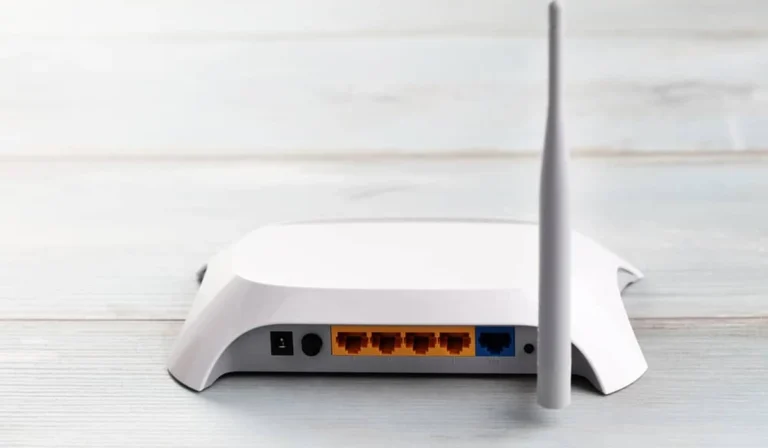
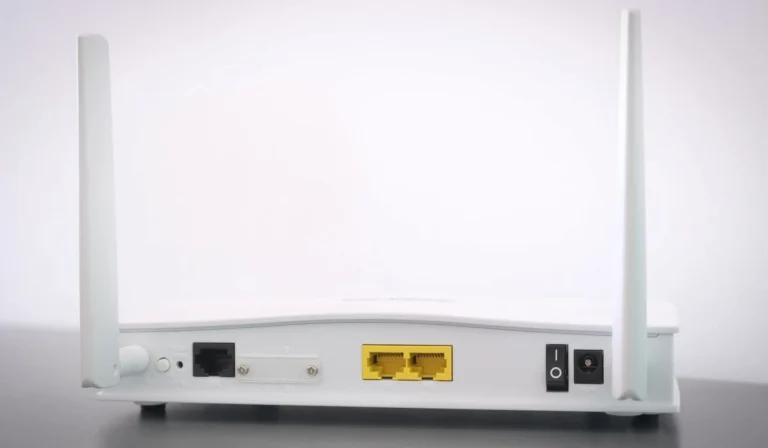
The box ships with the router, a power adapter, an Ethernet cable, a manual CD, and a quick start guide. It has one WAN port, four LAN ports, and a reset button that reboots the router or restores the factory defaults.
It shipped in 2004, so it is long out of support and far slower than any modern router. I treat any GWA502 still in service as a legacy device and plan its replacement rather than relying on it for new security work.
The GWA502 is the router where the address matters most. Plug into LAN port 1, open 192.168.62.10, type admin and admin, and the setup wizard opens. Change the password on day one, and the router is yours alone.
IOGEAR GWA502 problems users report, and what fixed them
Which username and password to use
The GWA502 manual lists admin for both the user name and password. If that fails, someone changed it, so hold the reset button to return to defaults.
Looking for a newer firmware
IOGEAR’s last firmware for this router is version 1.2.6 from June 2005. Get it from IOGEAR GWA502 downloads.
Speeds far below my plan
The GWA502 is an 802.11b/g router with 10/100 Ethernet ports, so it cannot pass more than about 100 Mbps even by cable. On a faster plan, the router is the bottleneck.