WiFi Settings: Change Network Name & Password

Your Wi-Fi name still says the router brand, and the password is the one printed…
Your Wi-Fi name still says the router brand, and the password is the one printed on the box. I have been there: the defaults work, but they tell everyone which router you own. WiFi settings are the controls inside your router that set the network name, the password, the band and the channel. This guide walks you through each one, step by step.
To change your WiFi settings, log in to your router at its gateway address — usually 192.168.1.1 — open the Wireless menu, and change the network name, password, band or channel. Save, then reconnect every device with the new details.
Is it a router, a modem or a CPE?
Router, modem, CPE, ONT, ONU and home gateway all sound like different boxes. I have seen the same small box called three of those names in one manual.
They do differ in detail, but the core job is the same: one box connects your home to the internet and hands out Wi-Fi. In this guide I call all of them a router, and the steps work the same way.
How to find the login IP address for your router
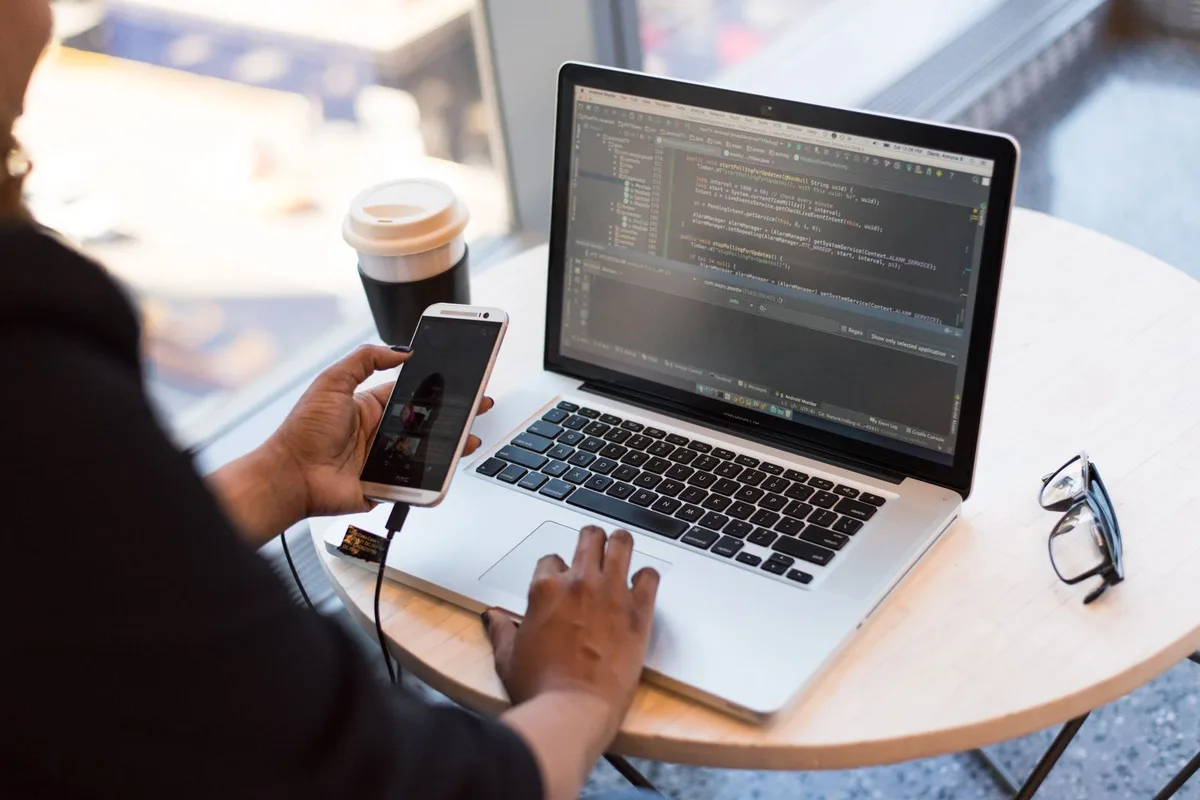
I start here, because nothing else works until you know the gateway address. The fastest way is the command line, and the settings menu works too.
- On Windows, open Settings, then Network and Internet, then Status, and open View your network properties. Look for the Default Gateway address.
- Or press Win + R, type cmd, press Enter, then type ipconfig and press Enter. Read the Default Gateway line under your Wi-Fi or Ethernet adapter.
- On a Mac, open System Settings, Network, Details, TCP/IP and read the Router field. That number is your gateway.
How to find the default credentials for your router
I check the label first, because it beats every website. The login is usually printed on the back or bottom of the router, next to the Wi-Fi name and password.
If the label is worn off, check the manual that came in the box or your ISP website. The examples below are what other guides list for each brand, and ISP models often differ, so treat the label as the truth.
| Brand | Username | Password |
|---|---|---|
| D-Link | admin | (blank) |
| Netgear | admin | password |
| Huawei | telecomadmin | admintelecom |
| TP-Link | admin | admin |
| Cisco | admin | admin |
If you changed the password during setup, the defaults no longer work. Use the password you set, or reset the router if you forgot it.
How to log in to your router
I log in from a laptop when I can, because a wired connection never drops mid-save. A phone works fine too, as long as it is on the same Wi-Fi.
- Connect your device to the router, by Wi-Fi or with an Ethernet cable.
- Open a browser and type the gateway IP address into the address bar, not the search box.
- Enter the username and password from the router label, or the ones you set during setup.
- If a login page opens, you are in. If nothing loads, check the gateway address again.
How to change the admin password of your router
The admin password protects the settings page, and it is not the same as your Wi-Fi password. I change it the first time I log in, because the defaults are public knowledge.
- Log in to your router and open the Administration, Security or System menu.
- Find Modify Login Password or Change Password and enter the current password.
- Type the new password twice and save. Pick a mix of upper and lower case letters, numbers and symbols, at least 8 characters long.
- If you forgot the admin password, press and hold the reset button for about 10 seconds. Our forgot router password guide walks through it.
How to change the WiFi name and password
This is the change most people come for. The network name, or SSID, is what your devices see when they scan for Wi-Fi, and the password is what lets them join.
- Log in to your router and open the Wireless or Wi-Fi settings menu.
- Find the SSID field and type your new network name. Keep it easy to recognise and leave out personal details like your address.
- In the same menu, set the Wi-Fi password. Use WPA3 if your router offers it, or WPA2 if it does not.
- Save your changes, then reconnect every device with the new password. Your old password stops working the moment you save.
I write the new name and password down before I save. Every device disconnects at once, and guessing the new password on ten devices is no fun.
How to add a second network name
Many routers can run a second network alongside the main one. I use one for guests and one for the kids, with different rules on each.
- Log in to your router and open the WLAN or Wireless settings menu.
- Look for Add SSID, Guest Network or Multi-SSID and turn it on.
- Give the new network a name, pick WPA2 or WPA3, and set its password.
- Set how many devices can join it, then save. Guests get internet without the main password.
How to change the WiFi band and channel
Wi-Fi runs on two bands: 2.4 GHz reaches further through walls but runs slower, and 5 GHz is faster but fades quicker. I have switched bands to fix a slow room more than once.
- Log in to your router and open the WLAN section, then the 2.4G or 5G advanced settings.
- Pick the channel number. The 2.4 GHz band has fewer channels than 5 GHz, which can use up to 23.
- Set the channel width if your router offers it, or leave it on Auto.
- Save and close. If you are unsure, keep everything on Auto and let the router choose.
How to turn on parental controls
Parental controls limit when devices can use the internet and block sites you choose. I set them up per device, because a shared schedule never fits everyone.
- Log in to your router and open the Security settings, then Parental Control.
- Create a template with the time limits and blocked sites you want.
- Assign the template to a device by its MAC address.
- Save the template. The limits apply the next time that device connects.
How to see who is connected to your router
A slow network often means an unknown device is using it. I check the connected list whenever the speed drops for no clear reason.
- Log in to your router and open the User Device Information list, usually under WAN or Status.
- Read the device names, MAC addresses and IP addresses on the list.
- Disconnect any device you do not recognise, and add it to the block list if your router has one.
- Change the Wi-Fi password if a stranger keeps coming back.
How to change the WPA key
The WPA key is the Wi-Fi password by another name. It is the key your devices enter to join the network, and it is different from the admin login.
- Log in to your router and open the WLAN settings.
- Pick WPA2 or WPA3 as the authentication mode.
- Type the new WPA key into the password field and save.
- Every connected device disconnects and must rejoin with the new key.
I change the WPA key when I share the old one too widely. If port forwarding is next on your list, our port forwarding guide covers it step by step.