Zyxel ZyWALL 2WG Login: Default Password

Log in to the Zyxel ZyWALL 2WG at 192.168.1.1 with the password 1234 and no username, leave admin out of it, and fix the login faults that keep owners out.
I have worked on Zyxel ZyWALL security appliances, and the 2WG surprises owners the first time they log in. There is no username field at all, only a password box, and the password is the four digits 1234. It is a business VPN firewall from 2007, not a home router, so the whole login works differently from the brands most people know.
This guide gives you the ZyWALL 2WG login, the password-only sign-in, and the steps that get you in.
The Zyxel ZyWALL 2WG logs in at 192.168.1.1 with the password 1234 and no username. Type the address into your browser, enter 1234 in the password box, and the web configurator opens.
The fastest way in: tap the button below, then sign in with the details in the box.
IP Address: 192.168.1.1
Username: (none — password only)
Password: 1234
Login to Admin Panel →This button opens our 192.168.1.1 login guide, which takes you to the appliance itself. It works only when your device is connected to that appliance, by cable. The 2WG has no Wi-Fi login page of its own — use a LAN port.
How to Log in to the Zyxel ZyWALL 2WG
Connect by cable first, because the 2WG is a wired appliance.
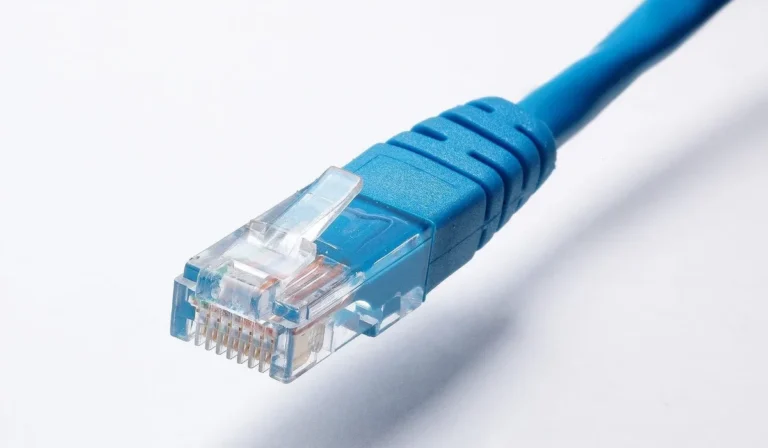
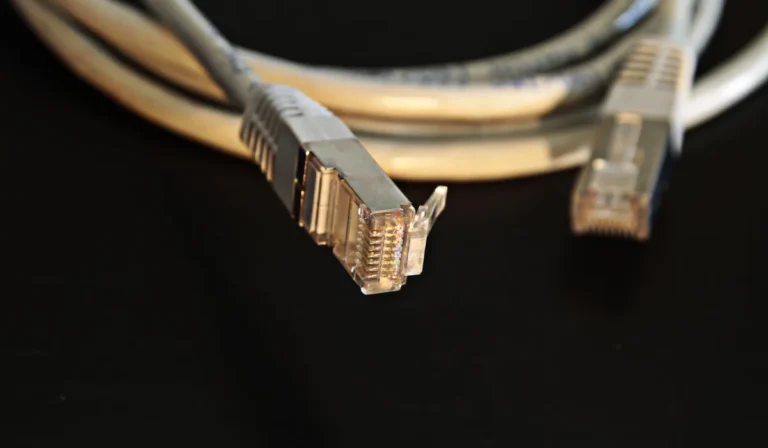
- Connect your computer to a LAN port on the ZyWALL 2WG with an Ethernet cable.
- Open a browser and go to 192.168.1.1. Type the address into the address bar, not the search bar.
- Leave the username field blank if one appears, and type 1234 in the password field.
- Click Login. The web configurator opens on the status screen.
- Change the password at first login, and check the VPN and firewall settings before you go further.
Zyxel ZyWALL 2WG Default Username and Password
I have seen this catch owners out: later ZyWALL USG models use admin and 1234, but the 2WG is older and logs in with a password only. The table below lists the pair from Zyxel’s own user’s guide, so try it first.
| Model | Username | Password | Login IP |
|---|---|---|---|
| ZyWALL 2WG | (none — password only) | 1234 | 192.168.1.1 |
| ZyWALL 2 Plus (related model) | (none — password only) | 1234 | 192.168.1.1 |
If 1234 fails, the password was changed after setup. There is no second default to try on the 2WG, so a factory reset is the only way back in. Do not type admin as a username — the 2WG manual never asks for one.
The admin and 1234 pair belongs to the later USG series, not to the 2WG. I keep the two apart, because typing admin into the 2WG login is the most common reason the page rejects a correct password.
Change Zyxel ZyWALL 2WG WiFi Password and Network Name
The 2WG is a wireless security appliance with 802.11a/b/g Wi-Fi and up to 8 SSIDs, so there is a Wi-Fi password to change as well as the admin password. I change the admin password first, then the wireless key.
- Log in at 192.168.1.1 with the password 1234.
- Open the wireless settings in the web configurator and pick the SSID you want to change.
- Type your new network name (SSID) in the network name box and save it.
- Set the security to WPA2, then type a new Wi-Fi password.
- Save the settings, then reconnect your devices with the new password.
The 2WG supports WPA and WPA2, including WPA2 Enterprise with a RADIUS server. I use WPA2 with a strong key on a home or small-office setup, and I write the new password down before I save it.
If the wireless menu is missing, the 2WG may be running in a mode with the radio off. Check the wireless settings first before you assume the hardware is faulty — the radio can be switched off in the configurator.
Zyxel ZyWALL 2WG Login Not Working?
- Make sure your computer is on a LAN port of the 2WG, not on a different network or mobile data.
- Type 1234 as the password only. The 2WG has no username, and admin is not a username here.
- Check that Caps Lock is off, and type the password exactly as it is — passwords are case-sensitive.
- Try a different browser if the configurator page loads half-finished. The 2WG web interface is old, and modern browsers sometimes render it oddly.
- Restart the appliance: unplug it, wait 30 seconds, and plug it back in.
If you still cannot log in because the password was changed and forgotten, reset the router to factory settings: press the RESET button on the rear panel and hold it for about 10 seconds, then let go. The password returns to 1234 and the LAN IP returns to 192.168.1.1.
A reset erases every setting, including the VPN tunnels and firewall rules, so you will need to set the appliance up again. If the login page will not open at all, check that you are using the right gateway address with our router IP finder.
Zyxel ZyWALL 2WG Key Specs
The ZyWALL 2WG is an internet security appliance, not a home router. It pairs an 802.11a/b/g wireless access point with a stateful firewall, IPSec VPN for site-to-site and remote access, and a 3G cellular uplink through a PCMCIA card slot for failover.
The box has a 4-port 10/100 switch, LAN, WLAN and DMZ security zones, content filtering, and support for up to 8 SSIDs. The unit measures 220 by 148 by 30 millimetres and weighs 570 grams.
It shipped in 2007, so it is long out of support. I treat any 2WG still in service as a legacy device and plan its replacement rather than relying on it for new security work.
The 2WG is the appliance where the missing username matters most. Leave the username blank, type 1234, and the configurator opens at 192.168.1.1. Change the password on day one, and the appliance is yours alone.
ZyXEL ZyWALL 2WG problems users report, and what fixed them
3G card not detected
ZyXEL’s support notes say to insert the 3G card before powering on, then check the home page for errors in the 3G Card IMEI and SIM Card IMSI fields. An error there means the card or SIM is not seated.
3G status says SIM locked
The 2WG log shows messages like “SIM locked-PIN” or “SIM locked-PUK”. Enter the SIM PIN in the 3G settings, or unlock the SIM in a phone first.
Speeds cap around 24 Mbps
The 2WG is rated for about 24 Mbps firewall and VPN throughput with 10/100 ports. On a faster line, the firewall is the limit.