192.168.2.1 Login: Comtrend WR-5931 Password

The Comtrend WR-5931 logs in at 192.168.2.1 with admin and 1234, not the usual 192.168.1.1. Find the steps, the Wi-Fi change, and the fixes here.
The Comtrend WR-5931 answers at 192.168.2.1, and that one digit trips up most owners. The usual 192.168.1.1 address opens nothing on this router, and the admin and admin pair from the old lists gets rejected too. The manual lists admin and 1234 at 192.168.2.1. This guide gives the login that works, the Quick Setup steps, and the fixes for the problems WR-5931 owners hit most.
The Comtrend WR-5931 logs in at 192.168.2.1 with the username admin and the password 1234. Type the address into the browser address bar, not the search bar. Other Comtrend models use different defaults, so check the label on your own router if 1234 fails.
The fastest way in: tap the button below, then sign in with admin and 1234.
IP Address: 192.168.2.1
Username: admin
Password: 1234
Login to Admin Panel →This button opens the 192.168.2.1 login guide, which takes you to the router itself. It works only when the device is connected to that router, by Wi-Fi or cable. If 1234 fails, check the label on your own router, because other Comtrend models use different defaults.
How to Log in to the Comtrend WR-5931
Follow the steps in order. Connect to the router first, then open the address, then type the password from the manual.
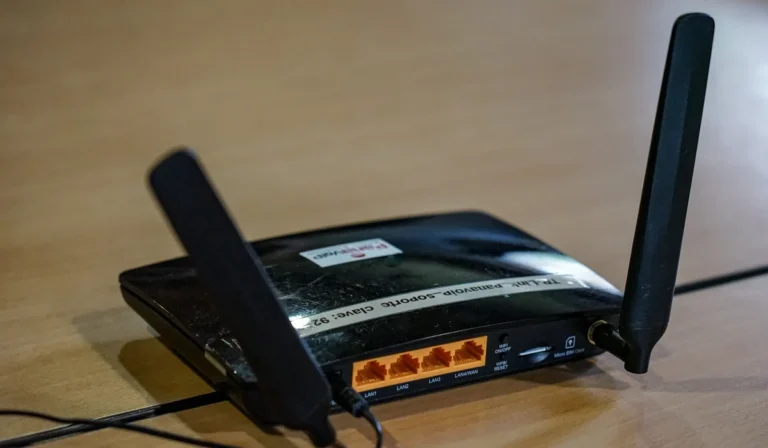
- Connect a computer to the WR-5931 with an Ethernet cable, or join its Wi-Fi network with the name and key on the label.
- Open a browser and type 192.168.2.1 into the address bar, not the search bar.
- Type admin in the username field and 1234 in the password field, then click Login.
- If the router is new, the Quick Setup wizard opens. Pick your connection type and type the ISP details from your provider.
- The admin panel opens. Change the Wi-Fi password right away, because the factory key sits on the label.
Comtrend WR-5931 Default Username and Password
The WR-5931 manual lists one default login. The table shows it, plus the fallbacks other Comtrend models use.
| IP | Username | Password |
|---|---|---|
| 192.168.2.1 (WR-5931, web admin panel) | admin | 1234 |
| 192.168.1.1 (other Comtrend models) | admin | admin |
| 192.168.1.1 (other Comtrend models) | root | 12345 |
The WR-5931 uses 192.168.2.1. The 192.168.1.1 rows cover other Comtrend models only. If admin and 1234 fail on a WR-5931, read the label on the bottom of your own router before trying another pair.
Comtrend lists the same address and login in the WR-5930 quick install guide, the sibling model in the WR-593x line. Read it in the Comtrend WR-5930 quick install guide.
The admin password opens the settings page. The Wi-Fi password joins the network. Changing one never changes the other.
Change Comtrend WR-5931 WiFi Password and Network Name
Change the Wi-Fi password after the first login. The factory key sits on the label, so anyone who reads it can join the network.
- Log in at 192.168.2.1 with admin and 1234.
- Open Wireless Settings in the admin panel.
- Type a new network name in the SSID box, then type a new Wi-Fi password.
- Save the settings, then reconnect every device with the new Wi-Fi password.
The WR-5931 broadcasts two bands, 2.4 GHz and 5 GHz. Set the name and password on both bands. The brand guide for the whole family sits at the Comtrend router login page on this site.
Comtrend WR-5931 Login Not Working?
Work through the list in order. Most WR-5931 login failures come from the wrong address or the wrong password pair.
- admin and admin is rejected: the WR-5931 takes admin and 1234. Type 1234 in the password field and try again.
- 192.168.1.1 will not open: the WR-5931 answers at 192.168.2.1. Type 192.168.2.1 into the address bar.
- The login prompt loops after entering credentials: the browser cached a failed session. Clear the cache, close the browser, and open 192.168.2.1 again.
- Forgot the management password: only a factory reset restores access. Hold the Reset/WPS button for 10 seconds, then set the router up again.
- Wi-Fi password unknown, or the Wi-Fi password will not change: log in to the admin panel, open Wireless Settings, and read or change the key for each band. The label key works only until you change it.
- Quick Setup asks for ISP details you do not know: the wizard needs the connection type and the PPPoE username and password from your provider. Ask your ISP for them. Do not guess them.
- The page loads but the web interface never appears: the router is still booting, or the browser cached an old page. Wait a minute, refresh, and try another browser.
- The router drops connections or runs slow after setup: move the router into the open, away from thick walls and other electronics, and check that the firmware is current.
- The address was typed into the search bar: a search engine cannot open a local address. Type 192.168.2.1 into the browser address bar at the top.
- The LAN IP was changed and the router cannot be found: a changed LAN IP moves the login page. Check the gateway address on a connected device and open that address instead.
If you still cannot log in because the password was changed and forgotten, reset the router to factory settings: press and hold the Reset/WPS button for 10 seconds, then let go and wait for the router to restart. A reset erases every setting, so the router will ask you to set it up again.
If no address opens the login page at all, the router may use a different gateway address. Check the gateway address on the connected device and try that address next.
Common Comtrend WR-5931 Login Typos
One wrong digit sends the browser to a different device or nowhere at all. Check the address against this table before trying anything else.
| Wrong | Right |
|---|---|
| 192.168.1.1 (the usual router address) | 192.168.2.1 |
| admin and admin as the login | admin and 1234 |
| 192.168.2.1 typed into Google search | 192.168.2.1 typed into the address bar |
| 192,168,2,1 (commas instead of dots) | 192.168.2.1 |
| 192.168.2.1 with the letter l for 1 | 192.168.2.1 |
Comtrend WR-5931 Key Specs
The WR-5931 is an AC2600 dual-band router: up to 1733 Mbps on 5 GHz with an 80 MHz channel and up to 800 Mbps on 2.4 GHz. It carries four 10/100M LAN ports and one WAN port, with beamforming, QoS, and a DMZ for hosted services.
The router runs the Comtrend web admin panel with Quick Setup, WPS, and a guest network. The WPS button on the back doubles as the reset button: a 10-second hold restores factory settings.
The WR-5931 login is 192.168.2.1 with admin and 1234. Write the password down after you change it, and the router answers only to its owner.