192.168.254.243 Login: Alvarion NG-4D1W Password

The Alvarion NG-4D1W opens at 192.168.254.243 with a blank username and private as the password. Log in, change Wi-Fi, reset it, and fix problems here.
The Alvarion Networking Gateway NG-4D1W is an old WiMAX gateway, and its login is easy to get wrong because most Alvarion routers use 192.168.1.1. This model does not. Three router databases agree that the NG-4D1W opens at 192.168.254.243, with the username left blank and private as the password. The official manual lists different addresses again, so this guide gives the reported login and tells you to check the label.
This guide gives you the NG-4D1W login, the web configuration steps, and the fixes for the login problems NG-4D1W owners hit most.
The Alvarion Networking Gateway NG-4D1W opens at 192.168.254.243 with the username left blank and the password private. Three router databases agree on that login, but the official manual lists different addresses, so check the label on the unit before trusting any website — including this one.
The fastest way in: tap the button below, then sign in with the details in the box.
IP Address: 192.168.254.243
Username: (blank — leave empty)
Password: private
Login to Admin Panel →This button opens the 192.168.254.243 login guide, which takes you to the gateway itself. It works only when the device is connected to that gateway, by WiFi or cable. If private fails, the password was changed — reset the gateway to bring it back.
How to Log in to the Alvarion Networking Gateway NG-4D1W
Follow the steps in order. Use a cable for the first login, and keep the gateway powered on while you work.
- Connect a computer to the NG-4D1W with an Ethernet cable, or join its Wi-Fi network (the factory SSID is default).
- Open a browser and type 192.168.254.243 into the address bar, then press Enter.
- Leave the username field blank, type private as the password, and click Log In.
- The web configuration server opens. The main menu shows Status, Wizard, and Basic Setting.
- Run the Wizard for first setup, then set your own admin password and save the settings.
Alvarion Networking Gateway NG-4D1W Default Username and Password
The NG-4D1W is the exception in the Alvarion range: most Alvarion routers use 192.168.1.1, but this gateway uses 192.168.254.243. The table lists the reported login first, then the combos from other Alvarion models.
| IP | Username | Password |
|---|---|---|
| 192.168.254.243 (NG-4D1W, router databases) | (blank — leave empty) | private |
| 192.168.254.243 (other Alvarion models) | operator | wimax |
| 192.168.254.243 (Alvarion alternate) | (no username) | installer |
| 192.168.1.1 (most Alvarion routers, if .243 fails) | (blank — leave empty) | private |
The disagreement matters, so do not skip it. Our own 192.168.254.243 guide takes a stricter view and publishes no login at all, because the official Alvarion NG system manual lists different default addresses.
The databases agree with each other on blank with private, and that is the combo to try first — but the label on the unit is the final word.
If private fails, try operator with wimax next, then a blank username with installer. If none of them works, the password was changed — reset the gateway instead of guessing further.
No live manufacturer page exists for Alvarion, so this page carries no official link. The NG system manual survives only as an FCC filing mirror. The login above comes from router databases that cite the manual; the label on the unit decides.
Change Alvarion NG-4D1W WiFi Password and Network Name
Change the Wi-Fi password right after the first login. The factory network name is default, so anyone nearby can guess it and join the network until you change it.
- Log in at 192.168.254.243 with a blank username and private.
- Open Basic Setting, then the wireless settings.
- Type a new network name (SSID) to replace default.
- Type a new Wi-Fi password and pick WPA2 if the page offers it.
- Click Save, then reconnect every device with the new password.
The admin password and the Wi-Fi password are separate. Changing the Wi-Fi password does not change the admin password, and the admin password changes through the password screen in the web configuration.
The NG system manual puts the wireless settings under Basic Setting, and the Wizard covers the first setup for administrators only. If the menu names look different on your unit, look for the same two pages — basic settings first, then wireless — and save before leaving the page.
Alvarion Networking Gateway NG-4D1W Login Not Working?
Work through the list in order. Most NG-4D1W login failures come from the wrong address or the wrong Alvarion login.
- private is rejected, or the blank username confuses the page: leave the username field truly empty and type private in lowercase. If it still fails, the password was changed — reset the gateway.
- Forgot the admin password: no recovery screen exists on this gateway. Reset it to factory settings, then log in with a blank username and private.
- 192.168.254.243 will not load: the computer is not on the NG-4D1W network. Connect by cable or join the default Wi-Fi network, then try the address again.
- Tried 192.168.1.1 instead of 192.168.254.243: most Alvarion routers use 192.168.1.1, but this gateway does not. Type 192.168.254.243 into the address bar instead.
- Forgot the Wi-Fi password: log in to the admin panel, open Basic Setting, then the wireless settings, and read or change the key. The factory SSID is default. If the admin password is also lost, reset the gateway.
- WiMAX link is down, or no internet after login: check the cable to the outdoor unit and the STATUS LED on the front panel. A blinking STATUS light means the unit is working; no light means no power or no link to the outdoor unit.
- operator/wimax vs blank/private confusion: operator with wimax belongs to other Alvarion models, like the BMAX-6000. The NG-4D1W uses a blank username with private — try that first.
- How long to hold the reset button — and will I lose everything: hold it for about 15 seconds, until the lights flash (see below). A reset erases every setting, so keep the ISP details ready before resetting.
- Bought the gateway used and the password is unknown: reset it to factory settings. If a reset does not restore access, the unit may need ISP support — this is an ISP-supplied WiMAX gateway, and some units are managed by the ISP.
- Page opens the ISP portal, not the gateway login: the gateway may sit behind the ISP modem, or the ISP manages it. Check the gateway address on the connected device, and call the ISP if the portal never leads to the gateway login.
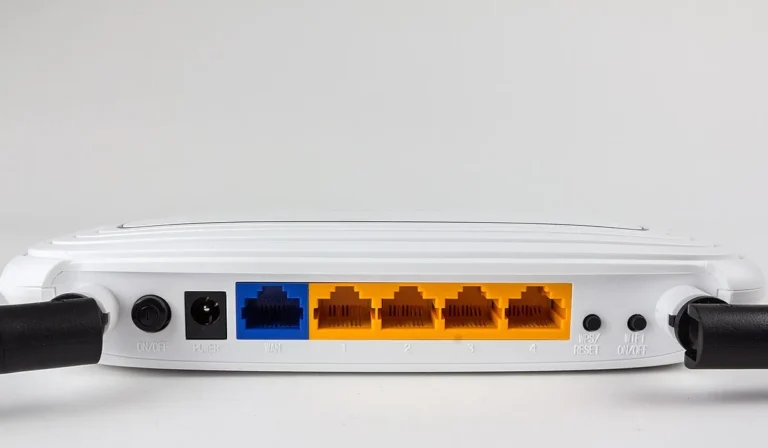
Reset the gateway only as a last step: reset the router by pressing the reset button on the back with a paper clip and holding it for about 15 seconds, until all the lights flash, then let go. The gateway reboots with a blank username and private, and the Wizard runs again for first setup.
Sources vary on the hold — 10 to 20 seconds — and 15 seconds is the middle of that range.
If no address opens the login page at all, the gateway may use a different address. Check the gateway address on the connected device with the Router IP Finder and try that address next.
Common Alvarion Networking Gateway NG-4D1W Login Typos
One wrong digit sends the browser to a different device or nowhere at all. Check the address against this table before trying anything else.
| Wrong | Right |
|---|---|
| 192.168.1.1 (most Alvarion routers, not this one) | 192.168.254.243 |
| 192.168.254.251 (another Alvarion gateway) | 192.168.254.243 |
| 192.168.1.251 (Alvarion BMAX range) | 192.168.254.243 |
| 192,168,254,243 (commas instead of dots) | 192.168.254.243 |
| 192.168.254.243 typed into Google search | 192.168.254.243 typed into the address bar |
Alvarion Networking Gateway NG-4D1W Key Specs
The NG-4D1W is a WiMAX Networking Gateway indoor unit (IDU) that works with a subscriber outdoor unit (SU-ODU) over an Ethernet cable. It carries four 10/100Base-T Ethernet ports and a built-in 802.11b/g wireless access point, so wired and wireless devices share one WiMAX link. The front panel shows POWER, WLAN, USB, STATUS, and LAN LINK/ACT lights.
The gateway runs the Alvarion NG system manual (software version 2.0, November 2004), with a web configuration server, a setup Wizard for administrators, and SNMP management. The manual covers installation, the web configuration server, login and logout, Status, the Wizard, and Basic Setting — including DHCP clients and the LAN setup page.
The Alvarion NG-4D1W login is 192.168.254.243 with a blank username and private. Use the gateway address, not 192.168.1.1, check the label, change the passwords after the first login, and the gateway answers only to its owner.