192.168.1.1 Login: FiberHome HG320 Password

The FiberHome HG320 logs in at 192.168.1.1 with useradmin and the random password printed on the label, not admin/admin. Find the steps and fixes here.
The FiberHome HG320 answers at 192.168.1.1, and the password is the part that trips owners up. The username is useradmin, and the password is a random string printed on the device label. Admin and admin fails, and the super-admin pair from the old lists fails too. This guide gives the login that works, the Wi-Fi steps, and the fixes for the problems HG320 owners hit most.
The FiberHome HG320 logs in at 192.168.1.1 with the username useradmin and the password printed on the device label. The Wi-Fi name looks like ChinaNet-XXXX, and its key sits on the same label. Type the address into the browser address bar, not the search bar.
The fastest way in: tap the button below, then sign in with useradmin and the password on the label.
IP Address: 192.168.1.1
Username: useradmin
Password: On the device label
Login to Admin Panel →This button opens the 192.168.1.1 login guide, which takes you to the router itself. It works only when the device is connected to that router, by Wi-Fi or cable. Read the password from the label on your own HG320, because each unit ships with a different one.
How to Log in to the FiberHome HG320
Follow the steps in order. Connect to the HG320 first, then open the address, then type the label password.
- Connect a computer to the HG320 with an Ethernet cable, or join its Wi-Fi network with the name and key on the label.
- Open a browser and type 192.168.1.1 into the address bar, not the search bar.
- Type useradmin in the username field and the password printed on the device label, then click Login.
- If the page opens in Chinese, switch the language to English at the top of the page, if the option shows.
- The admin panel opens. Change the Wi-Fi password right away, because the factory key sits on the label.
FiberHome HG320 Default Username and Password
The HG320 takes one user login, plus a super-admin account for full settings. The table shows both, with the fallback older units use.
| IP | Username | Password |
|---|---|---|
| 192.168.1.1 (HG320, user admin panel) | useradmin | Password on the device label |
| 192.168.1.1 (HG320, super admin) | telecomadmin | nE7jA%5m (often changed at activation) |
| 192.168.1.1 (older HG320 units) | admin | admin |
Use useradmin for Wi-Fi and everyday settings. The telecomadmin account opens the full configuration, and China Telecom often resets its password to an 8-character string when the fiber line is activated. If telecomadmin fails, use useradmin and call your ISP for the super-admin password.
No live FiberHome or China Telecom page publishes these defaults, so the table above follows the router documentation and the model data. The label on your own unit is the authority.
The admin password opens the settings page. The Wi-Fi password joins the network. Changing one never changes the other.
Change FiberHome HG320 WiFi Password and Network Name
Change the Wi-Fi password after the first login. The factory key sits on the label, so anyone who reads it can join the network.
- Log in at 192.168.1.1 with useradmin and the password on the label.
- Open WLAN or Wireless Settings in the admin panel.
- Type a new network name in the SSID box, then type a new Wi-Fi password.
- Save the settings, then reconnect every device with the new Wi-Fi password.
The HG320 broadcasts one 2.4 GHz network at up to 300 Mbps, with the name ChinaNet-XXXX by default. The four Ethernet ports on the back run at 100 Mbps, and the unit has no USB port.
FiberHome HG320 Login Not Working?
Work through the list in order. Most HG320 login failures come from the wrong password, not the wrong address.
- useradmin password is rejected: the password is the random string on the device label, not admin. Read it from the label and type it exactly, with the same capital letters.
- admin and admin is rejected: that pair works only on older HG320 units. Current China Telecom units take useradmin and the label password.
- telecomadmin login fails: China Telecom often resets the super-admin password to an 8-character string at fiber activation. Use useradmin for everyday settings, and call your ISP for the super-admin password.
- The page opens in Chinese and cannot be read: look for a language switch at the top of the page and pick English. If no switch shows, use the browser translate option, and learn the menu positions once.
- 192.168.1.1 will not load: the device is not on the HG320 network. Turn off mobile data and any VPN, join the HG320 Wi-Fi or plug in a cable, and type 192.168.1.1 into the address bar.
- Forgot the useradmin password: only a factory reset restores access. Hold the reset button for about 10 seconds, then set the router up again. A reset also wipes the broadband settings, so write them down first.
- Wi-Fi password unknown: the network name looks like ChinaNet-XXXX and the key sits on the label. Log in to the admin panel to read or change it.
- The login page redirects to an ISP portal: the browser opened the ISP captive page instead of the router. Type http://192.168.1.1 into the address bar, and clear the cache if the redirect repeats.
- A reset wiped the broadband PPPoE settings: a factory reset erases the ISP connection details. Type the PPPoE username and password from your provider back in, or call your ISP to restore them.
- useradmin and telecomadmin cause confusion: useradmin opens Wi-Fi and everyday settings, while telecomadmin opens the full configuration. Start with useradmin. Use telecomadmin only when you need a setting that useradmin cannot reach.
If you still cannot log in because the password was changed and forgotten, reset the router to factory settings: press and hold the reset button for about 10 seconds, then let go and wait for the router to restart. Write down the PPPoE details first, because a reset erases them.
If no address opens the login page at all, the router may use a different gateway address. Find it with our Router IP Finder tool and try that address next.
Common FiberHome HG320 Login Typos
One wrong digit sends the browser to a different device or nowhere at all. Check the address against this table before trying anything else.
| Wrong | Right |
|---|---|
| useradmin typed with admin as the password | useradmin with the password on the label |
| telecomadmin typed as the username for Wi-Fi settings | useradmin for Wi-Fi settings |
| ChinaNet-XXXX typed as the login | the password on the device label |
| 192.168.1.1 typed into Google search | 192.168.1.1 typed into the address bar |
| 192.168.1.1 with the letter l for 1 | 192.168.1.1 |
FiberHome HG320 Key Specs
The HG320 is a GPON optical network terminal for China Telecom fiber lines: up to 300 Mbps on 2.4 GHz Wi-Fi, with four 100 Mbps Ethernet ports. It has no USB port.
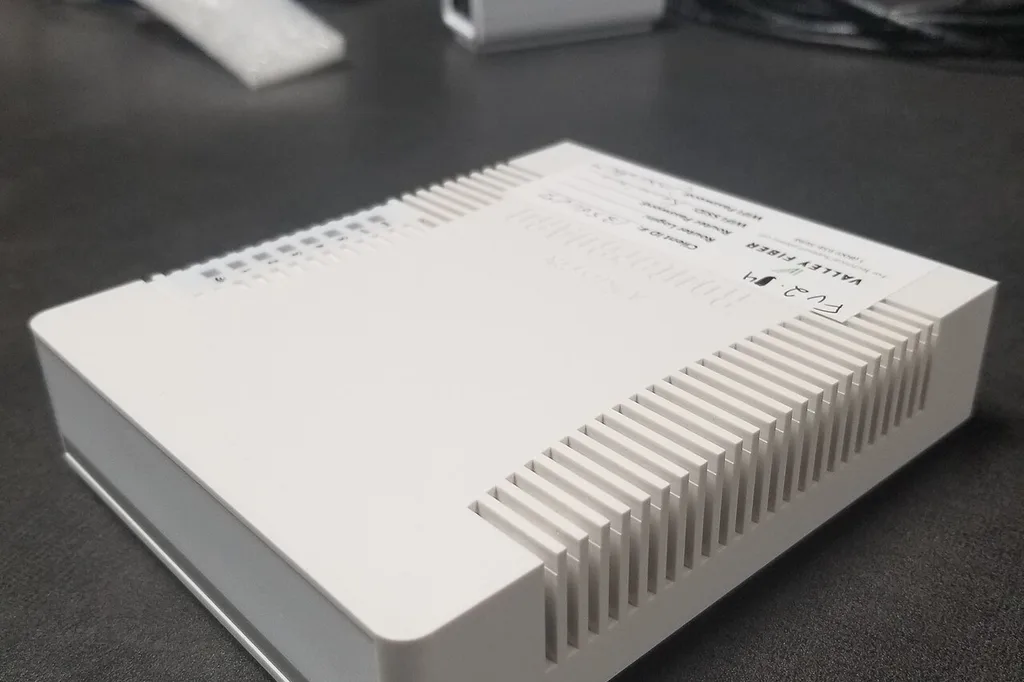
The unit runs the FiberHome web admin panel with two accounts: useradmin for everyday settings and telecomadmin for the full configuration. The label on the bottom lists the Wi-Fi name, the Wi-Fi key, and the useradmin password.
The HG320 login is 192.168.1.1 with useradmin and the label password. Write the password down after you change it, and the router answers only to its owner.