192.168.1.1 Login: Acer Home Gateway Password

The Acer Home Gateway opens at 192.168.1.1, but no single factory login is published. Try blank/0000, then admin/admin — and trust the label on your unit.
The Acer Home Gateway is an old Acer home router, and its login is harder than most because no single factory login was ever published for it. The competitor page lists no username, no password, and no IP at all. Router databases disagree with each other, and Acer’s own site offers no manual for this model. This guide gives the reported logins in order, so you try the most likely one first.
This guide gives you the Home Gateway login, the setup wizard path, and the fixes for the login problems Home Gateway owners hit most.
The Acer Home Gateway opens at 192.168.1.1, but Acer published no single factory login for this model. Try a blank username with the password 0000 first, then admin with admin, then admin with password. Read the label on the bottom of the unit before guessing further.
The fastest way in: tap the button below, then try the logins in the order the table gives.
IP Address: 192.168.1.1
Username: — (check the label)
Password: — (check the label)
Login to Admin Panel →This button opens the 192.168.1.1 login guide, which takes you to the router itself. It works only when the device is connected to that router, by WiFi or cable. No factory login is verified for this model — try blank/0000 first, then admin/admin, and trust the label over any website.
How to Log in to the Acer Home Gateway
Follow the steps in order. Use a cable for the first login, and read the label on the bottom of the unit before typing anything.
- Connect a computer to the Home Gateway with an Ethernet cable, or join its Wi-Fi network.
- Open a browser and type 192.168.1.1 into the address bar, then press Enter.
- Leave the username blank, type 0000 as the password, and click Log In.
- If that fails, try admin as the username and admin as the password.
- Once you are in, set your own admin password and write it down.
Acer Home Gateway Default Username and Password
No single login is verified for this model, so the table lists the reported combos in the order owners report them. The label on the unit decides — if the label prints a login, use that one first.
| IP | Username | Password |
|---|---|---|
| 192.168.1.1 (Home Gateway, most reported) | (blank — leave empty) | 0000 |
| 192.168.1.1 (Acer-wide, most common) | admin | admin |
| 192.168.1.1 (older Acer units) | admin | password |
| 192.168.1.1 (some Acer units) | (blank — leave empty) | (blank — leave empty) |
The disagreement is real, not a mistake in this guide. One database that cites the Home Gateway manual gives blank with 0000.
Acer-wide guides give admin with admin, and older Acer units from 2015 to 2018 sometimes used admin with password or a blank password. Router-reset lists no default at all for most Acer routers, which matches what the competitor page shows.
Try the combos in order, one at a time, and stop after the third failure. If none of them works, the password was changed — reset the router instead of guessing further.
No Acer manual for the Home Gateway surfaced on Acer’s support site, so this page carries no official link. Acer’s current manuals cover newer mesh routers, not this model. The combos above come from router databases that cite the Home Gateway manual; the label on the unit decides.
Change Acer Home Gateway WiFi Password and Network Name
Change the Wi-Fi password right after the first login. The factory wireless settings are simple, so anyone nearby can join the network until you set a password.
- Log in at 192.168.1.1 with the login that worked for your unit.
- Open the wireless settings page. The menu name varies by firmware.
- Type a new network name (SSID) for the wireless network.
- Type a new Wi-Fi password and pick WPA2 if the page offers it.
- Click Save, then reconnect every device with the new password.
The admin password and the Wi-Fi password are separate. Changing the Wi-Fi password does not change the admin password, and the admin password changes on its own screen under the administration or system settings.
If the panel shows an Acer setup wizard instead of the normal login page, click Advanced Settings or Manual Configuration first. The wizard hides the wireless settings until you reach the regular admin panel.
Acer Home Gateway Login Not Working?
Work through the list in order. Most Home Gateway login failures come from the wrong combo or a password that was changed.
- admin/admin is rejected: that combo is common Acer-wide, but it is not the only Home Gateway login. Try a blank username with 0000 first, then admin with password, then a blank password.
- Forgot the admin password: no recovery screen exists on this model. Reset the router to factory settings, then log in with the combo that works for your unit.
- 192.168.1.1 will not load: the computer is not on the Home Gateway network. Connect by cable or join the Home Gateway Wi-Fi, then try the address again.
- Setup wizard appears instead of a login page: the unit is on first use, or it was reset. Click Advanced Settings or Manual Configuration to reach the regular admin panel.
- Forgot the Wi-Fi password: log in to the admin panel, open the wireless settings page, and read or change the key. If the admin password is also lost, reset the router.
- Changed a setting and the internet stopped working: log back in and undo the last change. If the panel will not open, reset the router and run the wizard again with the ISP details.
- Router drops connections or stops responding: power-cycle the modem and the router, then check the cables. If the drops continue, reset the router and set it up again.
- How long to hold the reset button — and will I lose everything: hold it for about 10 seconds (see below). A reset erases every setting, so keep the ISP connection details ready before resetting.
- Page asks for a username but the label shows only a password: leave the username blank and type the password from the label. Some Acer units ask for a password only, and 0000 is the combo most often reported for this model.
- Login page will not open from a phone: turn off mobile data and join the Home Gateway Wi-Fi first. A phone on mobile data never reaches a local router address.
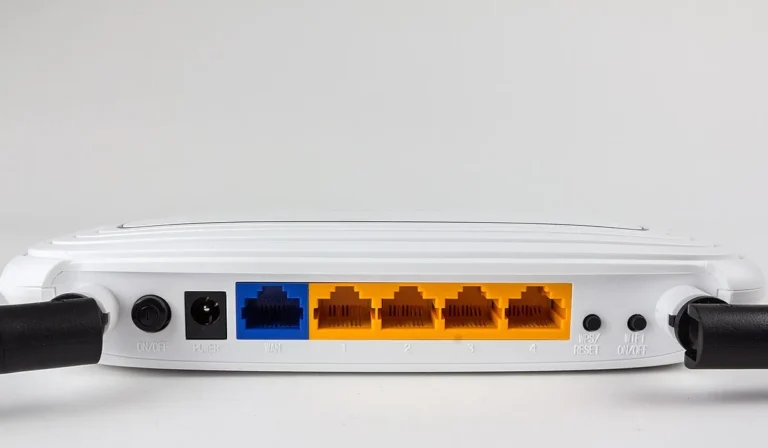
Reset the router only as a last step: reset the router by pressing the reset button on the back with a paper clip and holding it for about 10 seconds, then let go. The router restarts with the factory login, and the setup wizard runs again from the start.
Some guides give up to 30 seconds for the hold — 10 seconds is enough on most units.
If no address opens the login page at all, the router may use a different gateway address. Check the gateway address on the connected device with the Router IP Finder and try that address next.
Common Acer Home Gateway Login Typos
One wrong digit sends the browser to a different device or nowhere at all. Check the address against this table before trying anything else.
| Wrong | Right |
|---|---|
| 192.168.0.1 (wrong network for this model) | 192.168.1.1 |
| 192.168.50.1 (reported Acer variant) | 192.168.1.1 |
| 192.168.l.l (letter l instead of 1) | 192.168.1.1 |
| 192.168.1.1 typed into Google search | 192.168.1.1 typed into the address bar |
| acerconnect.com (newer Acer mesh portal) | 192.168.1.1 |
Acer Home Gateway Key Specs
The Home Gateway is an older Acer home router, set up through a browser at 192.168.1.1. Some units show an Acer setup wizard on first use instead of a login page, and the regular admin panel sits behind the Advanced Settings or Manual Configuration link.
The login printed on the unit label decides, because Acer published no single factory login for this model.
Do not confuse this model with Acer’s newer mesh routers. The Acer Wave 7 and the Acer Connect range use acerconnect.com and a setup flow built around the back label, and their manuals live on Acer’s download site. Those are different products from the Home Gateway, and their logins do not apply here.
The Acer Home Gateway login is 192.168.1.1 with a login that varies by unit — try blank with 0000 first. Check the label, change the passwords after the first login, and the router answers only to its owner.