ASUS RT-AC87U Login: Default IP & Password

The ASUS RT-AC87U opens at 192.168.1.1 with admin and admin, then asks you to pick your own login. This guide walks through the setup and the fixes.
I have set up ASUS RT-AC87U routers, and the first login still catches owners out. The factory pair is admin and admin, but the setup wizard then asks you to pick your own login, and the old pair stops working after that. Your router is online, and the quick setup wizard walks you through it in minutes.
This guide gives you the RT-AC87U login, the password table, and the steps that get you in.
The ASUS RT-AC87U logs in at 192.168.1.1 with the username admin and the password admin. You can also open router.asus.com in your browser, and the same pair works there. After a reset, the wizard asks you to create your own login instead.
The fastest way in: tap the button below, then sign in with the details in the box.
IP Address: 192.168.1.1
Username: admin
Password: admin
Login to Admin Panel →This button opens our 192.168.1.1 login guide, which takes you to the router itself. It works only when your device is connected to that router, by WiFi or cable. If the wizard opens instead of a login box, create your own username and password there.
How to Log in to the ASUS RT-AC87U
Connect by cable first if you can, because the Wi-Fi password is blank until you set one.
- Connect your computer to the RT-AC87U with an Ethernet cable, or join its Wi-Fi network — the names are ASUS and ASUS_5G, with no preset Wi-Fi password.
- Open a browser and go to 192.168.1.1, or type router.asus.com into the address bar instead.
- Type admin in the username field and admin in the password field, then click Sign In.
- If the Quick Internet Setup wizard opens, create your own username and password when it asks, then finish the internet setup.
- The ASUSWRT admin panel opens, and you can change the Wi-Fi details or check connected devices.

ASUS RT-AC87U Default Username and Password
I have seen this catch owners out: the factory pair works once, and then the wizard replaces it with the login you picked. The table below lists both states, so find yours and try its row first.
| Model | Username | Password | Login IP |
|---|---|---|---|
| RT-AC87U (factory) | admin | admin | 192.168.1.1 |
| RT-AC87R (same hardware) | admin | admin | 192.168.1.1 |
| RT-AC87U (after first setup) | your own login | your own password | 192.168.1.1 |
If admin and admin fails, the login was already changed during setup. There is no second factory pair to try, so a factory reset is the only way back in.
Newer ASUS routers answer at 192.168.50.1, but the RT-AC87U is an older model and uses 192.168.1.1. Router.asus.com finds the router on either address, so I use the name when the number fails.
Change ASUS RT-AC87U WiFi Password and Network Name
I change the Wi-Fi password first on every router I set up, because the RT-AC87U ships with no Wi-Fi password at all. Once you are logged in, the change takes about a minute.
- Log in at 192.168.1.1 with admin and admin, or with the login you created during setup.
- Open the wireless settings in the ASUSWRT admin panel.
- Type your new network name (SSID) in the network name box and save it.
- Set the security to WPA2, then type a new Wi-Fi password.
- Save the settings, then reconnect your devices with the new password.
The RT-AC87U ships with no Wi-Fi password set, so anyone nearby can join the network until you set one. I set the Wi-Fi password in the same session as the admin password, before I do anything else.
The router runs two bands, 2.4 GHz and 5 GHz, with the names ASUS and ASUS_5G out of the box. I give both bands the same new password so my devices move between them without a second login.
ASUS RT-AC87U Login Not Working?
- Make sure your device is connected to the RT-AC87U network, not to mobile data or a different Wi-Fi network.
- Check that the WAN cable is plugged into the port labelled WAN, and that you are on a LAN port or the ASUS Wi-Fi.
- Try admin and admin first. If the Quick Internet Setup wizard opens instead, create your own login there — the factory pair is gone after setup.
- Try router.asus.com if 192.168.1.1 fails. The name finds the router whatever address it is on.
- Check that Caps Lock is off, and type the password exactly as it is — passwords are case-sensitive.
- Restart the router: unplug it, wait 30 seconds, and plug it back in.
If you still cannot log in because the password was changed and forgotten, reset the router to factory settings. Press the RESET button and hold it for at least 5 seconds, until the power LED starts to flash, then let go.
A reset erases every setting, and the router will ask you to set it up again. If the login page will not open at all, check that you are using the right gateway address with our router IP finder.
ASUS RT-AC87U Key Specs
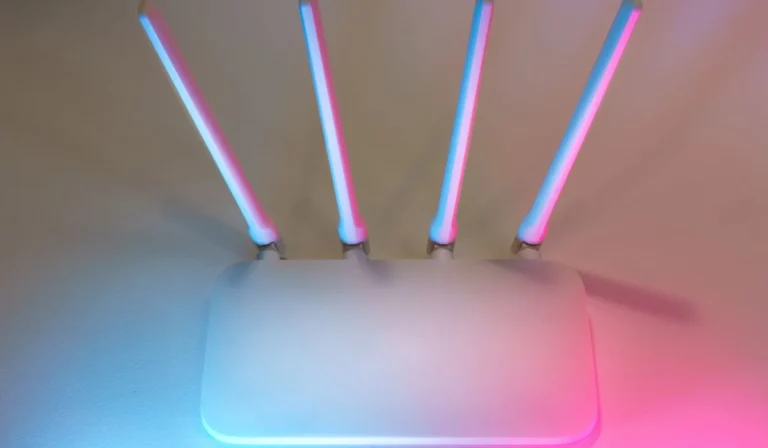
The RT-AC87U is a dual-band Wireless-AC2400 gigabit router: 600 Mbps on 2.4 GHz and 1733 Mbps on 5 GHz, with four external antennas, four gigabit LAN ports, one gigabit WAN port, and a USB 3.0 port on the front. A 1 GHz dual-core processor runs the ASUSWRT firmware with AiCloud and the AiProtection security tools.
It shipped in 2014 as the first AC2400-class router, so it is an older model now. I check for firmware updates before I rely on it, and I plan its replacement rather than treating it as a new security device.
The RT-AC87U is the router where the wizard matters most. Use admin and admin once, pick your own login when the wizard asks, and the admin page opens at 192.168.1.1. Write the new login down, because the factory pair never works again after setup.
ASUS RT-AC87U problems users report, and what fixed them
Router drops the connection and reboots several times a day
An RT-AC87U owner on ASUS Zentalk traced daily reboots to the stock firmware, and ASUS lists the model as end of life. Switching to Asuswrt-Merlin firmware kept it up for days.
5GHz stops working after a firmware update
SNBForums users saw the 5GHz radio die a few days after updating. ASUS release notes say to hold reset for more than 5 seconds after some updates because the 5GHz driver changed.
NAS drives keep disappearing
One owner found NAS drives on the LAN dropped in and out after firmware 378_9460. Turning off UPnP fixed it. Get the last official firmware from ASUS RT-AC87U firmware.