192.168.0.1 Login: Archer C7 V5 Password

The Archer C7 V5 has no factory password — create one at first setup on tplinkwifi.net. This guide covers the login, the reset, and the fixes.
The Archer C7 V5 breaks the pattern every older Archer C7 owner expects. There is no admin and admin login on this hardware version. The first setup asks for a new password instead, and that password becomes the only way in. The router still answers at 192.168.0.1, and the fix for a forgotten password is a reset, not a lookup.
This guide gives you the Archer C7 V5 login, the create-password flow, and the steps that get you in.
The Archer C7 V5 logs in at 192.168.0.1 or tplinkwifi.net with no username and the password created during first setup. There is no factory password on this version — if the page asks for a password, use the one set at setup, not admin.
The fastest way in: tap the button below, then sign in with the password created at first setup.
IP Address: 192.168.0.1
Username: — (no username field)
Password: Created during first setup
Login to Admin Panel →This button opens our 192.168.0.1 login guide, which takes you to the router itself. It works only when your device is connected to that router, by WiFi or cable. If the page asks you to create a password, that is the first-setup screen — pick one and save it.
How to Log in to the Archer C7 V5
Follow these steps in order, because the order keeps a login from going wrong. Connect to the router first, then open the login page.
- Connect your computer to the Archer C7 V5 with an Ethernet cable or over its Wi-Fi network.
- Open a browser and type tplinkwifi.net or 192.168.0.1 into the address bar, not the search bar.
- On first setup, create a login password when the page asks, then click Let’s Get Started.
- On later logins, type the password created at setup, then click Log In.
- The admin panel opens, and the wireless settings, connected devices, and firmware update sit on the main menus.

Archer C7 V5 Default Username and Password
The C7 V5 follows a different rule from the older C7 versions, so the table below lists this version only. Older C7 hardware (v1 to v4) uses admin and admin, but that pair does not open a v5 unit.
| IP Address | Username | Password |
|---|---|---|
| 192.168.0.1 (or tplinkwifi.net) | — | Created during first setup |
| 192.168.0.1 (or tplinkwifi.net) | admin | admin — older C7 v1–v4 only, not v5 |
Source: TP-Link’s own Archer C7 user guide states the create-password flow — Archer C7 login guide (tp-link.com).
If the login page asks for a username, the router is not a v5 unit, or the firmware is older than the v5 guide. Check the hardware version on the label under the router — v5 means create-a-password, and any other version means admin and admin.
Other TP-Link models follow the same tplinkwifi.net login — see the TP-Link router login guide for the full list.
Change Archer C7 V5 WiFi Password and Network Name
Change the Wi-Fi password first on every router, because the factory key is the same pattern on every unit. Once logged in, the change takes about a minute.
- Log in at tplinkwifi.net with the password created at setup.
- Open Basic, then Wireless, in the admin panel.
- Type a new network name (SSID) in the network name box for each band and save it.
- Set the security to WPA2, then type a new Wi-Fi password.
- Save the settings, then reconnect every device with the new password.
The Wi-Fi password and the admin password are separate on the C7 V5, so changing one does not change the other. Write the new Wi-Fi password down before saving it, so the network stays reachable.
The factory Wi-Fi name looks like TP-Link_XXXX with a 5G twin, and the factory Wi-Fi password sits on the label under the router. The label password opens the Wi-Fi only — it never opens the admin page.
Archer C7 V5 Login Not Working?
Start with the connection itself, because that is where most login failures begin.
- Forgot the admin password and admin/admin does not work: use Forgot password on the login page if a TP-Link ID or recovery was set up. Otherwise hold Reset until the Power LED blinks, then create a new password at tplinkwifi.net and set the router up again.
- tplinkwifi.net will not open: connect to the router’s own network, switch mobile data and VPN off, then type 192.168.0.1 directly. Set the computer to obtain IP and DNS automatically, clear the browser cache, or try another browser.
- Password rejected after linking a TP-Link ID: once bound, the local password stops working — log in with the TP-Link ID instead. Check Basic, then TP-Link Cloud, to unbind and rebind, or skip cloud binding and use a local password only.
- Confusion between the sticker password and the admin password: the sticker holds the Wi-Fi password, not the admin password. The admin password is the one created at first setup. Change the Wi-Fi password under Basic, then Wireless.
- Changed the router LAN IP and cannot log in: open the new IP instead of the old one, reboot the computer, and keep a second router in the main router’s subnet with its DHCP off to avoid an address clash.
- 5 GHz is slow or disappears: update to the current stock firmware, then set a fixed non-DFS channel such as 36, 40, 44, or 48 with the correct country code. On old firmware, turning UPnP off helped some owners.
- WDS extender setup leaves the router unreachable: the WDS password is not the Wi-Fi password — match the root router’s SSID and password, give the extender a LAN IP inside the root subnet, and switch its DHCP off.
- Setup finished but no internet and the WAN IP shows 0.0.0.0: power-cycle the modem first, then the router. Clone the computer’s MAC address, set DNS to 8.8.8.8, and confirm the connection type with the ISP.
- Router bricked after flashing firmware: use TFTP recovery — set the computer to 192.168.0.66, rename the firmware ArcherC7v5_tp_recovery.bin, hold Reset while powering on, and wait for the transfer and a full reboot. Never unplug it mid-flash.
- Tether app logs in but the web page does not: update the router firmware and the Tether app, reboot the router, and try another browser or an incognito window. A hard reset is the last resort.
If the password is lost and recovery was never set up, reset the router to factory settings: press and hold the Reset button until the Power LED blinks, then visit tplinkwifi.net and create a new login password.
A reset erases every setting, and the setup wizard runs again. If the login page will not open at all, check the real gateway address with the Router IP Finder tool.
Common Typos When You Type the Archer C7 V5 Login
A single wrong character sends the browser to a different device or nowhere at all. Check the address against this table before trying again.
| Wrong | Right |
|---|---|
| tplinkwifi.net typed as tplinkwifi.com | tplinkwifi.net |
| 192.168.0.1 typed as 192.168.1.1 | 192.168.0.1 |
| 192.168.0.1 typed as 192.168.0.11 | 192.168.0.1 |
| 192.168.0.1 typed as 192.168.0.1.1 | 192.168.0.1 |
| tplinkwifi.net typed in the search bar | Type it in the address bar |
| admin typed as the Wi-Fi password | Use the password created at first setup |
Archer C7 V5 Key Specs
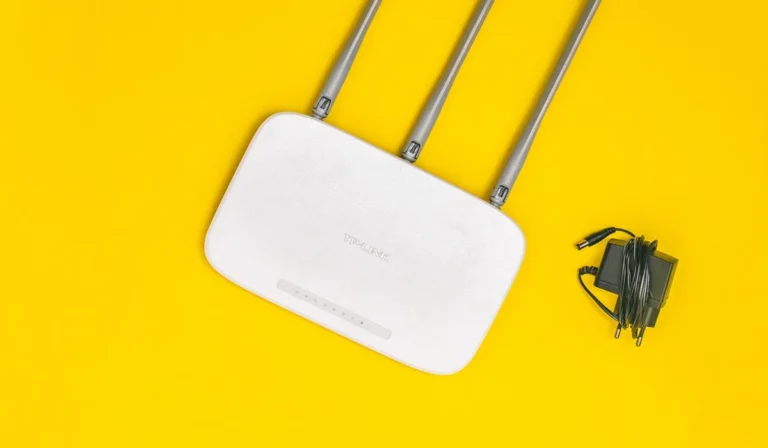
The Archer C7 V5 is a Wi-Fi 5 router with AC1750 speed — 450 Mbps on 2.4 GHz and 1300 Mbps on 5 GHz. Three fixed external dual-band antennas cover a home, and the router runs 802.11ac on 5 GHz and 802.11b/g/n on 2.4 GHz.
The back panel carries four Gigabit LAN ports and one Gigabit WAN port, plus a USB 2.0 port for storage sharing. The router supports WDS bridging, a guest network on each band, QoS, parental controls, a VPN server, and the Tether app with TP-Link Cloud.
The v5 hardware is the same platform as the Archer A7 v5, with the same AC1750 radio and the same create-password login. The two routers differ in firmware features and USB count, not in speed or coverage.
The C7 V5 is the router where the version matters most. Open tplinkwifi.net, create a password on first setup, and that password is the only key. Change the Wi-Fi password on day one, and the router stays yours alone.