192.168.0.1 Login: Ruckus Admin Password

Ruckus ZoneFlex access points log in at 192.168.0.1 with super and sp-admin — not admin/admin. Find your deployment type, the right row, and the fixes.
Most Ruckus login lists print admin and admin at 192.168.20.1, and both halves are wrong for the access points people actually own. The real standalone login is super and sp-admin at 192.168.0.1, and controller-managed units take a different login entirely. This guide gives you the right row for your deployment, the steps that open the admin page, and the fixes for the problems Ruckus owners hit most.
This guide covers the Ruckus standalone login, the Unleashed and controller paths, the Wi-Fi steps, and the fixes owners need most.
Log in to a factory-default standalone Ruckus ZoneFlex access point at https://192.168.0.1 with the username super and the password sp-admin. Unleashed and controller-managed units use different logins, so match your deployment in the table below before you type anything.
IP Address: 192.168.0.1
Username: super
Password: sp-admin
Wi-Fi Name (SSID): Wireless1 (factory default, security off)
Login to Admin Panel →This button opens our 192.168.0.1 login guide, which takes you to the access point itself. It works only when your device is connected to that access point by cable or Wi-Fi. Open https://192.168.0.1 when the page warns about the certificate, then accept it and continue.
How to Log in to a Ruckus Wireless Router
Check how your access point is managed before you type anything. A standalone unit answers at 192.168.0.1, while a controller-managed unit answers through its controller.
- Connect your computer to the Ruckus access point with an Ethernet cable, or join its Wi-Fi network.
- Give the computer an address on the same network when there is no DHCP server: set it to 192.168.0.20 with the mask 255.255.255.0.
- Open a browser and type https://192.168.0.1 into the address bar, then press Enter.
- Accept the browser security warning: click Advanced, then Proceed to 192.168.0.1. The access point uses a self-signed certificate.
- Type super in the username box and sp-admin in the password box, then click Login.
- Change the password to one only you know when the page asks on first login, then save it.
Ruckus Wireless Default Username and Password
Ruckus ships access points, controllers, and switches under one brand name, so the login changes with the deployment. Find your setup in the table, then use its row.
| IP | Username | Password |
|---|---|---|
| 192.168.0.1 (ZoneFlex standalone AP) | super | sp-admin |
| 192.168.0.1 (ZoneFlex 2942, older APs) | admin | password |
| 192.168.0.254 (MediaFlex 2111) | admin | password |
| unleashed.ruckuswireless.com (Unleashed) | admin (created at setup) | Password created at setup |
| Controller address (ZoneDirector / SmartZone) | admin | Password set in the setup wizard |
The standalone row (super and sp-admin at 192.168.0.1) comes from the official Ruckus access point guide, which prints the same address and the same pair. The Unleashed and controller rows come from the same official documentation. Read the official Ruckus login guide for the full steps.
An access point that already sits on a network often takes an address from DHCP instead of 192.168.0.1. Check the DHCP server or scan the network for the access point, then open the address it actually holds.
The ICX switch is a separate device with its own login. It never shares the access point password, so check the switch label or the installer paperwork when the switch asks for credentials.
Change Ruckus WiFi Password and Network Name
Change the Wi-Fi details right after your first login. The factory networks run open with no password, so anyone nearby can join them until you set one.
- Log in at https://192.168.0.1 with super and sp-admin.
- Open Configuration, then Wireless.
- Pick the wireless network you want to change, such as Wireless1.
- Type a new network name (SSID) in the network name box.
- Set the security to WPA2, type a new Wi-Fi password, then click Apply.
The admin password and the Wi-Fi password are separate. Changing the Wi-Fi password never changes the access point login, and changing the login never changes the Wi-Fi password.
Unleashed networks change Wi-Fi from the Unleashed dashboard instead. Open unleashed.ruckuswireless.com, sign in with the admin account created at setup, then open the WLAN settings. Our WiFi settings guide covers the same steps in detail.
Ruckus Wireless Login Not Working?
Work through the list in order. Most Ruckus login failures come from the wrong deployment or the wrong address, not from a broken access point.
- admin/admin is rejected: the standalone login is super and sp-admin, not admin/admin. Type super in the username box and sp-admin in the password box.
- 192.168.0.1 will not load: the access point may hold a DHCP address instead. Check the DHCP server for the access point address, or connect by cable and try again.
- Browser blocks the page with a certificate warning: the access point uses a self-signed certificate. Click Advanced, then Proceed to 192.168.0.1, and the login page opens.
- First login forces a password change: type a new password twice when the Change Password box appears, click Submit, then log in again with the new password.
- Unleashed login rejects super/sp-admin: Unleashed uses the admin account created during setup, not the standalone pair. Open unleashed.ruckuswireless.com and sign in with that account.
- Controller-managed access point rejects the local login: the controller owns the credentials. Log in to the ZoneDirector or SmartZone controller, not the access point itself.
- Forgot the password set at first login: reset the access point to factory settings, then log in again with super and sp-admin and set a new password.
- The Configure.Me network appears instead of your Wi-Fi: the access point is unconfigured and waiting for setup. Join Configure.Me, open the setup wizard, and finish it.
- The access point answers at a different address: a DHCP server gave it another address. Find the address on the DHCP server, then open that address in the browser.
- The ICX switch asks for a different login: the switch is a separate device. Use the switch credentials from the installer or the label, not the access point pair.
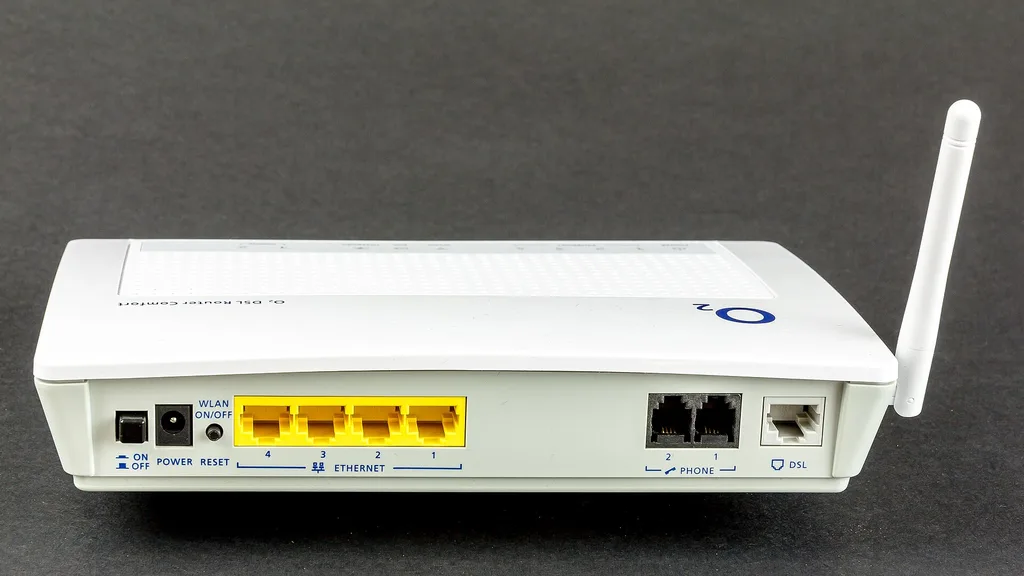
If the password is gone for good, reset the router to factory settings: let it finish booting, then press the recessed reset button on the back with a pin and hold it for about 10 seconds, then let go and wait for the lights to settle.
Ruckus is the brand where the deployment matters most. Match the unit to its row, open the right address, and the admin page opens. Never trust a list that prints one shared password for every Ruckus device.
Common Mistakes When Typing the Ruckus Login
One wrong digit sends the browser to a different device or nowhere at all. Check the address and the pair against this table before trying anything else.
| Wrong | Right |
|---|---|
| admin as the username | super |
| admin as the password | sp-admin |
| 192.168.20.1 for a standalone AP | 192.168.0.1 |
| 192.168.1.1 for a standalone AP | 192.168.0.1 |
| http://192.168.0.1 when the browser demands HTTPS | https://192.168.0.1 |
| Typing the address into the search bar | Typing it into the browser address bar |
| The Unleashed admin password at the AP page | The standalone super and sp-admin pair, or the Unleashed dashboard for Unleashed units |