Setup AmpedWireless Login: Admin & Password

Amped Wireless routers and extenders open at setup.ampedwireless.com with admin and admin. Fallbacks 192.168.3.1 and 192.168.1.240, plus fixes, inside.
You opened setup.ampedwireless.com and the Amped setup page either never loaded or rejected the login you tried. That address belongs to Amped Wireless routers, range extenders, and access points, and the same login works across them. This guide gives you the exact login, the fallback addresses, and the fixes for the problems Amped owners hit most.
Open setup.ampedwireless.com in a browser while connected to the Amped device, then sign in with username admin and password admin. If the page never loads, try http://192.168.3.1 for a router or http://192.168.1.240 for a range extender instead.
The fastest way in: tap the button below, then sign in with the details in the box.
IP Address: setup.ampedwireless.com
Username: admin
Password: admin
Login to Admin Panel →This button opens http://setup.ampedwireless.com, your own Amped device’s setup page. It works only when your device is connected to that Amped router or extender, by Wi-Fi or cable. If the page never loads, try http://192.168.3.1 for a router or http://192.168.1.240 for an extender.
How to Log in via setup.ampedwireless.com
Follow the steps in this order, because the order keeps a setup from going wrong. Connect to the Amped device first, then open the setup address, then sign in with the factory login.
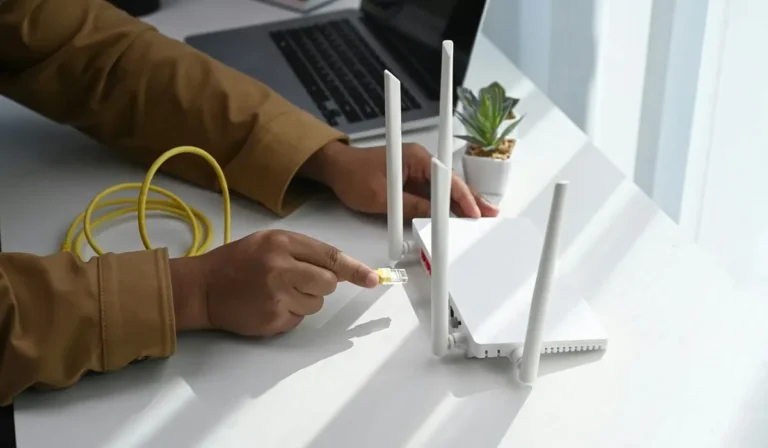
- Connect your computer or phone to the Amped router or extender, by cable or over its Wi-Fi network.
- Open a browser and type http://setup.ampedwireless.com into the address bar, not the search bar.
- If the page fails to open, type http://192.168.3.1 for a router or http://192.168.1.240 for a range extender.
- Type admin in the login field and admin in the password field, then click Login or Sign In.
- The Smart Setup Wizard opens on a first setup, or the Dashboard opens on a device that is already set up.
What setup.ampedwireless.com Is
setup.ampedwireless.com is the local setup address for Amped Wireless routers, range extenders, and access points. It is not a website on the internet: the address only answers while your device is connected to the Amped device itself. The Amped user guides print it as the first address to try, with the IP address as the fallback.
Amped routers such as the R10000, R20000G, and RTA series open their Smart Setup Wizard at this address. Amped range extenders such as the REC10 and SR series use the same address for their setup wizard. The setup page walks through the internet connection, the wireless network name, and the wireless password in one pass.
The same Amped guides give the fallback addresses: 192.168.3.1 for routers and 192.168.1.240 for extenders and repeaters. Amped access points such as the AP20000G answer at 192.168.80.240 instead, so check the model name on the label if the setup page never loads.
Setup AmpedWireless.com Default Username and Password
The login is the same across Amped routers, extenders, and access points: admin and admin. The table below lists every address that opens the Amped setup page, so you can try the next row when the first one fails.
| IP | Username | Password |
|---|---|---|
| setup.ampedwireless.com | admin | admin |
| 192.168.3.1 | admin | admin |
| 192.168.1.240 | admin | admin |
| 192.168.80.240 | admin | admin |
Sources: Amped Wireless R20000G User’s Guide lists the setup address, the 192.168.3.1 fallback, and the admin and admin login, plus the default wireless names and key. The extender fallback 192.168.1.240 and the access-point address 192.168.80.240 come from the Amped setup guides for those models.
The first row is the one to try first: the setup address works on routers and extenders alike. The second row, 192.168.3.1, is the router fallback when the setup address fails to open. The third row, 192.168.1.240, is the extender and repeater fallback.
The fourth row, 192.168.80.240, covers Amped access points such as the AP1200EX, AP20000G, and APA20. If none of the four rows works, the login was changed at setup, and only a factory reset brings admin and admin back.
Change the WiFi Password on an Amped Router
Change the Wi-Fi password right after the first login, because the factory key is the same on every unit of a model. The factory wireless key on the R20000G is wireless, and the factory network names are Amped_2.4GHz and Amped_5.0GHz.
- Log in at setup.ampedwireless.com with admin and admin.
- Open Wireless Settings, then Wireless Security, in the web menu.
- Type a new network name in the SSID box and save it.
- Set the security to WPA2, then type a new Wi-Fi password.
- Save the settings, then reconnect your devices with the new password.
Change the admin login too, under More Settings, then Management, then Password. The admin login opens the settings, and the Wi-Fi password joins the network: keep the two different, and write both down.
setup.ampedwireless.com Not Opening?
Start with the connection itself, because that is where most Amped setup failures begin.
- If the setup page never loads, check that your device is on the Amped network, not on another network or mobile data. On an extender, join the Amped_REC10 network first, then try the address again.
- If admin and admin is rejected, the login was changed at setup. Try the password you set, then reset the device: hold the Reset button for 5 to 10 seconds and try admin and admin again.
- If the extender lost its home network after a channel change, log in to your main router and set the wireless channel from Automatic to a fixed number. Then run the Amped Setup Wizard again to reconnect the extender.
- If you cannot log on to the extender wirelessly, check that your wireless adapter supports WPA2. If it does not, change the extender security to WEP or disable it, then try again with a cable.
- If the web menu no longer responds, connect to the extender with an Ethernet cable and open setup.ampedwireless.com again. If it still fails, reset the device for 5 to 10 seconds and run the wizard again.
- If the wizard asks for ISP settings you do not know, pick Automatic Configuration first and let the wizard detect them. If it fails, ask your internet provider for the connection type before you run the wizard again.
- If you mixed up the admin login and the Wi-Fi password, stop and separate them. The admin login is admin and admin, and the Wi-Fi key is the word wireless on a factory unit. The label and the setup page show them in different places.
- If the extender sits too far from the router, the setup wizard refuses to finish. Move the extender closer until the router signal reads 70 percent or better, then run the wizard again.
- If a third-party firewall blocks the page, turn it off for the setup and try again. The setup page needs no internet access, because the menu is served from the Amped device itself.
- If you changed a setting and the network broke, revert the change while you are still logged in. If you are locked out, run a factory reset: hold the Reset button for 5 to 10 seconds, wait for the reboot, and log in with admin and admin.
If you still cannot log in because the password was changed and forgotten, reset the router to factory settings: hold the Reset button for 5 to 10 seconds, then let go and wait for the reboot to finish.
A reset erases every setting, and the Amped device will ask you to run the Setup Wizard again. If the setup page will not open at all, check the address on the label: routers answer at 192.168.3.1, and access points answer at 192.168.80.240.
Common Mistakes When Typing the Login
A single wrong character sends you to a search page or nowhere at all. These are the typos Amped owners type most often for this address.
| Wrong | Right |
|---|---|
| setup.ampedwireless | setup.ampedwireless.com |
| setup.ampedwireless.net | setup.ampedwireless.com |
| setup.ampedwireless.com with spaces | setup.ampedwireless.com |
| setup.ampedwireless.com/192.168.3.1 | setup.ampedwireless.com |
| www.setup.ampedwireless.com | setup.ampedwireless.com |
| ampedwireless.com | setup.ampedwireless.com |
The most common mistake is dropping the setup part and opening the Amped company website instead. Type the full address, with setup at the front and .com at the end, into the address bar. If the page still fails, use the fallback IP for your device type.
setup.ampedwireless.com is one login for the whole Amped range, and the label on your own device settles which fallback address applies. Try the setup address first, then 192.168.3.1, then 192.168.1.240. Change the admin login on day one, and the device is yours alone.