Orange Router Login: Default IP & Password

The first time I opened an Orange Livebox login page, I typed admin/admin and got…
The first time I opened an Orange Livebox login page, I typed admin/admin and got nowhere. I have seen the same mistake trip up plenty of owners: Orange does not use one shared password, so the usual guess fails and the page gives no hint about the real one. This guide gives you the correct login for your Livebox, the steps to get in, and the fixes I reach for when it will not open.
Log in at 192.168.1.1 with the username admin and the first eight characters of the Wi-Fi security key printed on your Livebox label.
The fastest way in: tap the button below, then sign in with the details in the box.
IP Address: 192.168.1.1
Username: admin
Password: First 8 characters of the Wi-Fi security key (on the label)
Login to Admin Panel →This button opens our 192.168.1.1 guide, which takes you on to your router’s own login page. It works only when your device is connected to this router, by WiFi or cable.
Orange Default Username and Password
I check the label first on every Orange router I touch, because the password lives there and not in any shared list. The table below covers the Livebox models Orange ships most, so find your model and country before you type anything.
| Model / Country | Username | Password |
|---|---|---|
| France Livebox 4, 5, 6, 7, S | admin | First 8 characters of the Wi-Fi security key on the label, no spaces |
| Spain Livebox 6, 6+, 7, Arcadyan 6s, Infinity | admin | Full Wi-Fi key printed on the label |
| Spain Livebox Fibra | admin | Full value after CLAVE Wi-Fi on the label |
| Belgium Livebox / fibre modem | admin | Password printed on the rear label |
| Poland FunBox 6 (redesigned interface) | admin | No fixed password — create one on first access, confirmed with WPS |
| Older Livebox 2, 3 and 4 | admin | Blank — leave the password field empty |
I never type admin as the password on a current Livebox. Older guides still print it, but Orange moved to label passwords years ago, and the shared guess only wastes your time.
One honest note: sources disagree on the earliest Livebox 4 units, with some listing a blank password and others the label key. I try the label key first, then a blank password, because both appear in the records for that generation.
How to Log in to an Orange Router
I walk through these steps in the same order every time, because the order is what keeps a login from going wrong. If your router asks you to create a password instead, that is the first-setup flow on some models.
- Connect your computer or phone to the Orange router with an Ethernet cable or over Wi-Fi.
- Open a browser and go to 192.168.1.1. In France and Spain you can also open livebox/, which takes you to the same login page.
- Type admin in the username field.
- Type your password from the label: the first eight characters of the Wi-Fi security key (France), or the full printed Wi-Fi key (Spain). Leave it blank on the oldest Livebox units.
- Click Connexion, or acceso in Spain. The admin panel opens, and you can change the Wi-Fi name and password or check connected devices.
I keep the label in view while I type, because the key is case-sensitive and one wrong letter locks you out.
Change Orange WiFi Password and Network Name
I change the Wi-Fi password first on every router I set up, because the factory key is printed on a label anyone in the room can read.
Once you are logged in to the Orange admin panel, changing the Wi-Fi details takes about a minute:
- Log in at 192.168.1.1 with the admin password from the label.
- Open the Wi-Fi settings section of the admin panel.
- Change the network name (SSID) for the 2.4 GHz and 5 GHz bands, or leave it as it is.
- Type a new Wi-Fi password, then save the settings.
- Reconnect your devices with the new password.
Use a password of at least 12 characters with a mix of letters and numbers, and avoid reusing a password you use anywhere else. The admin password and the Wi-Fi password are two different things, so changing one does not change the other.
Orange Login Not Working?
I start with the connection itself, because that is where most login failures begin, and I work through the list in the order it is written.
If the login page will not open or the password is rejected, work through these fixes:
- Make sure your device is connected to the Orange network, not to mobile data or a different Wi-Fi network.
- Type the address exactly: 192.168.1.1, with no extra letters or spaces. Try livebox/ if the numbers do not load.
- Check that Caps Lock is off, and type the password exactly as printed — passwords are case-sensitive.
- Try a different browser, or clear the browser cache and try again.
- Restart the router: unplug it, wait 30 seconds, and plug it back in.
- Confirm your connection is live with our what-is-my-ip tool.
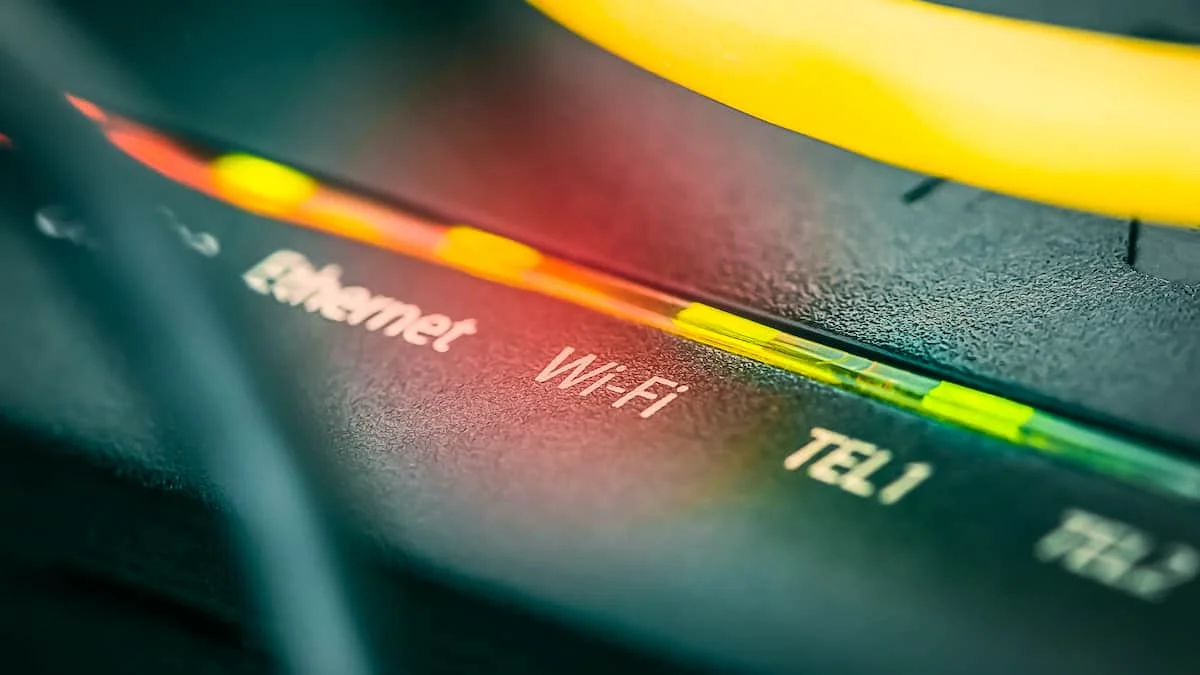
If you still cannot log in because the password was changed and forgotten, reset the router to factory settings: press a pin into the recessed Reset button and hold about 10 seconds until the router restarts. On a French Livebox 5, 6, 7 or S, try Mot de passe oublié on the login page first, as it lets you set a new password without wiping the router. After a reset, log in again with the label password and set the router up from scratch.
Key facts: Orange routers are Livebox units supplied by Orange in France, Spain, Poland, Belgium and Romania. Most use 192.168.1.1 as the login address, with livebox/ as the name shortcut in France and Spain. The default network name looks like Livebox-XXXX, and the Wi-Fi key sits on the same label.