192.168.12.1 Router Admin Login & Setup Guide

192.168.12.1 LOGIN 192.168.12.1 T-Mobile login guideNot your IP? Default IP192.168.12.1 Usernameadmin PasswordPrinted on the gateway…
Connect to your T-Mobile gateway over Wi-Fi or Ethernet first — this address only works on your home network.
The first time I tried to open my T-Mobile gateway settings, I typed the address into my browser and reached a page that asked for a password I did not have. The gateway sat beside me, but the password was not in the box or in the app.
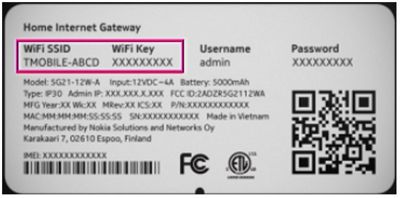
I learned it is printed on a label on the bottom of the gateway. This guide gives you that login and the steps that open the settings and change your Wi-Fi password.
Log in at 192.168.12.1 with the username admin and the password printed on the label on the bottom of your gateway.
The fastest way in: tap the login button in the box at the top of this page, then sign in with the details on your router label.
192.168.12.1 Default Login Details
I checked these details against T-Mobile’s own gateway documentation before I wrote them down, so the table below matches the gateway you have at home.
| Detail | Value |
| Login IP | 192.168.12.1 |
| Username | admin |
| Password | Printed on the gateway label |
| Gateway models | Nokia 5G21, Arcadyan KVD21, Sagemcom FAST 5688W, 5G Gateway Gen4 and Gen5 |
How to Log In to 192.168.12.1
I work through the steps below in the same order every time, because the order is what keeps a login from going wrong.
T-Mobile’s gateways share the same address, but the login flow depends on the model. The Nokia 5G21 has a web settings page you open in a browser, while the newer gateways and phones use the T-Life app. Start with the web steps for the Nokia gateway below.
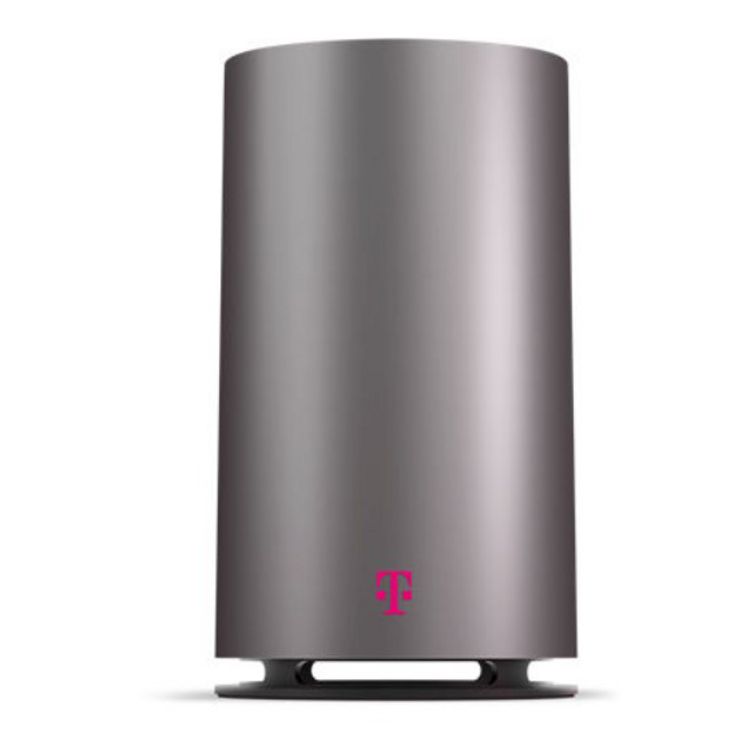
- Power on the gateway and connect over Ethernet or Wi-Fi.
- Open a web browser and go to 192.168.12.1.
- Log in with your username and password — the username is admin, and the password is the per-device password printed on the label on the bottom of the gateway.
- The Overview screen shows the network overview and the gateway information.
Disconnect any active VPN sessions first, or the login page will not open. The web settings page is for desktop computers; on a phone, use the T-Life app instead.
The Arcadyan KVD21 gateway also opens at 192.168.12.1.
T-Mobile’s own steps for it are the same first two steps — power on, connect, and open the address in a browser — and the Home Screen then shows the connection status, the connection quality, and the gateway information, including the firmware version, the serial number, and the running time.
Wi-Fi network changes for the KVD21 go through the T-Life app.
The Sagemcom FAST 5688W gateway uses the same address. On a phone, sign in to the T-Life app with your T-Mobile ID, select Home Internet, and manage the gateway from there.
T-Mobile’s own setup video walks through the gateway setup and the Wi-Fi name and password change:
Change WiFi Password and Network Name
I change the Wi-Fi password first on every gateway I set up, because every device in the house connects with it.
Most settings on a T-Mobile gateway, including the Wi-Fi name and password, are managed in the T-Life app. The steps below change them from your phone:
- Open the T-Life app and sign in with your T-Mobile ID.
- From the T-Life Home screen, select Home Internet, then go to the My Wi-Fi screen.
- Select the network name under My networks.
- To change the network name, type the new name in the Wi-Fi network name (SSID) field. To change the password, type the new password in the Wi-Fi network password (key) field.
- Select Save at the bottom of the screen.
On a Nokia 5G21, you can also change the Wi-Fi details in the web settings: open Network, then Wi-Fi Networks, choose the 2.4 GHz or 5 GHz band, and change the network name (SSID), the encryption mode, the WPA version, and the Wi-Fi password (WPA Key).
To change the gateway’s own admin password on a Nokia 5G21, open the System tab, select Change Password, enter the current password (the one printed on the bottom of the gateway), enter and confirm the new password, and select Update Password.
Use a password of at least 12 characters with a mix of letters and numbers, and avoid reusing a password you use anywhere else.
Login Not Working?
I start with the connection itself, because that is where most login failures begin, and I work through the list in the order it is written.
- Make sure your device is connected to the gateway network, not to mobile data or a different Wi-Fi network.
- Disconnect any active VPN sessions — a VPN blocks the login page.
- Type the address exactly: 192.168.12.1, with no extra letters or spaces.
- Try a different browser, or clear the browser cache and try again.
- Restart the gateway: unplug it, wait 30 seconds, and plug it back in.
If you still cannot log in because the password was changed and forgotten, reset the router to factory settings. On a Nokia 5G21 running firmware 1.2103.00.0338, press and hold the reset button for more than 30 seconds.
After the reset, log in again with the username admin and the password printed on the gateway label, and set the gateway up again.
Key specs: The T-Mobile 5G Home Internet gateways share the address 192.168.12.1. The Arcadyan KVD21 is a dual-band Wi-Fi 6 (802.11ax) gateway with WPA2/WPA3, two Ethernet ports, and support for up to 64 devices, on 5G bands N41, N66 and N71. Firmware updates run automatically between 1 and 3 am PST.