192.168.1.1 IP Address
Click on the button below to enter the admin interface of your router.
192.168.1.1 Router Login: Connect Your Router and Access the Admin Panel
Connecting your internet-enabled device to a wireless router is simple if you follow the right steps. Once your router is properly set up, you can access the router admin panel through 192.168.1.1 and manage important network settings such as the Wi-Fi name, Wi-Fi password, router login credentials, security options, and connected devices.
How to Connect Your Wireless Router
Start by taking your new router out of the box and checking its default login details. Most routers have the default username, password, Wi-Fi network name, and router IP address printed on a label at the back or bottom of the device. You can also find this information in the router’s user manual.
Before setting up the router, make sure your internet connection is working. You can do this by connecting the Ethernet cable directly to your computer or laptop. If the internet works properly, you can continue with the router setup.
Next, plug the router into a power source and wait for it to fully boot. This may take a few minutes. Once the router lights become stable, connect the Ethernet cable to the router’s WAN or Internet port. This port is usually marked as “WAN” or “Internet” and may have a different color than the other Ethernet ports.
Now open the Wi-Fi settings on your phone, laptop, tablet, or computer and look for the default network name of your router. In most cases, the default Wi-Fi name is based on the router brand or model. If you cannot find it, check the router label or user manual.
After connecting your device to the router’s Wi-Fi network, you are ready to access the router admin interface.
How to Open the 192.168.1.1 Router Admin Panel
To access the router admin panel, open any web browser such as Google Chrome, Mozilla Firefox, Microsoft Edge, or Safari. In the browser’s address bar, type:
textCopy192.168.1.1
Press Enter, and the router login page should appear. Enter the default username and password to sign in. These login details are usually available on the router label, at the bottom of the device, or in the user manual.
If 192.168.1.1 does not open, your router may be using a different local IP address. Some routers use IP addresses such as 192.168.0.1, 192.168.10.1, or another default gateway. You can check your device’s network settings to find the correct router IP address.
What Can You Change in the Router Admin Panel?
After logging in successfully, you will be taken to the router admin dashboard. From this panel, you can manage and customize different router and wireless network settings, including:
- Changing the Wi-Fi network name, also called SSID
- Updating the Wi-Fi password
- Changing the router admin username and password
- Managing local IP address settings
- Checking connected users and devices
- Enabling or disabling guest networks
- Improving wireless security settings
- Setting parental controls and access restrictions
For better security, it is highly recommended to change the default router username and password after the first login. Keeping the default login details can make your network vulnerable to unauthorized access. You should also use a strong Wi-Fi password and enable WPA2 or WPA3 security if your router supports it.
What to Do If 192.168.1.1 Is Not Working
If the router login page does not open, first make sure your device is connected to the router through Wi-Fi or Ethernet. Also, type 192.168.1.1 in the browser address bar, not in the search bar.
If the page still does not load, restart your router and try again. You can also check the default gateway in your computer or mobile network settings to find the correct router login IP address.
As a final option, you can perform a factory reset on your router. However, keep in mind that a factory reset will erase all custom settings and restore the router to its default configuration.
Final Words
The 192.168.1.1 router login page allows you to manage your wireless router and network settings easily. Through the admin panel, you can change the Wi-Fi password, update the network name, modify router login credentials, manage connected devices, and improve overall network security. After setting up your router, always update the default login details to keep your home or office network safe
Secure Your Router Username and Password
Your router username and password are the first layer of protection for your home or office network. Keeping these login details safe is essential to prevent unauthorized access, unwanted intrusions, and changes to your router settings.
Never share your router admin username or password with anyone you do not trust. If someone gains access to your router admin panel, they may be able to change your Wi-Fi password, monitor connected devices, modify network settings, or reduce your network security.
For better protection, always use a strong and unique password that includes a mix of uppercase letters, lowercase letters, numbers, and special characters. Avoid using common passwords such as admin, password, 12345678, or your name and phone number.
It is also recommended to change the default router login credentials after the first setup. Default usernames and passwords are often easy to guess and may be available publicly for many router models. Updating them helps secure your home or office Wi-Fi network against unauthorized users.
To keep your router secure:
- Do not share your router username or password with others
- Change the default admin login details
- Use a strong and unique password
- Avoid saving passwords on public or shared devices
- Update your password regularly
- Keep your router firmware updated when possible
By securing your router username and password, you can protect your network, connected devices, and personal data from unwanted access.
Change Your Default Router Username and Password
For better router security, it is highly recommended to change the default username and password after your first login. Most routers come with preset admin credentials, and these default details can sometimes be easy to guess or publicly available online. By updating them, you make sure that only you or authorized users can access the router admin panel.
If someone gains access to your router admin dashboard, they may be able to change your Wi-Fi settings, disconnect devices, modify security options, or disrupt your home or office network. This can affect your internet speed, privacy, and overall network safety.
To reduce this risk, create a strong and unique router admin password. Avoid using simple passwords such as admin, password, 123456, your name, phone number, or address. A secure password should include a combination of uppercase letters, lowercase letters, numbers, and special characters.
You should also protect your Wi-Fi network with a strong password. This prevents unauthorized users from connecting to your internet connection without permission. If your Wi-Fi is not password-protected, others may use your bandwidth, slow down your connection, or access devices connected to the same network.
Best Practices for Router and Wi-Fi Security
- Change the default router username and password after the first login
- Use a strong and unique admin password
- Set a secure Wi-Fi password for your wireless network
- Do not share your router login details with unknown users
- Enable WPA2 or WPA3 encryption if available
- Avoid using personal information in passwords
- Update your router firmware regularly
- Review connected devices from the admin panel
By securing both your router admin panel and Wi-Fi network, you can protect your home or office internet connection from unauthorized access, network hijacking, and unwanted security risks.
What Is the 192.168.1.1 IP Address?
192.168.1.1 is a private IP address commonly used by wireless routers as a default gateway. It allows users to access the router admin panel and manage important network settings such as Wi-Fi name, Wi-Fi password, security options, connected devices, and local network configuration.
An IP address, or Internet Protocol address, is a unique set of numbers used to identify devices connected to a computer network. A standard IP address is made up of four numbers separated by dots, and each number can range from 0 to 255. For example, 192.168.1.1 follows this format.
Private IP Address vs Public IP Address
A private IP address is used inside your home or office network. It helps your router communicate with connected devices such as laptops, PCs, smartphones, tablets, smart TVs, and other internet-enabled devices. Since 192.168.1.1 is a private IP address, it is not directly accessible from the public internet.
A public IP address, on the other hand, is assigned to your network by your Internet Service Provider. Websites, cloud services, online platforms, and other internet services use your public IP address to send data to your home or office network.
Your router acts as a gateway between your private network and the internet. When a device connected to your Wi-Fi requests data from a website or online service, the router receives that data through the public IP address and then forwards it to the correct device using private IP addresses.
Devices That Use the Router Gateway IP
The router uses the gateway IP address to manage and distribute internet access to devices connected to the network, including:
- Laptops
- Desktop PCs
- Smartphones
- Tablets
- Smart TVs
- Gaming consoles
- Printers
- Other Wi-Fi-enabled devices
192.168.1.1 as a Default Gateway IP Address
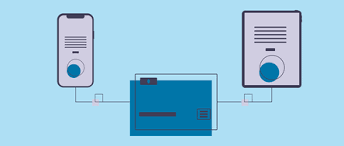
192.168.1.1 is commonly used as a router’s default gateway IP address. This means it works as the main access point between your local network and the internet. When devices connect to your router, they receive private IP addresses that are usually related to the router’s gateway IP.
For example, if your router uses 192.168.1.1 as its default gateway, connected devices may receive IP addresses such as 192.168.1.2, 192.168.1.3, 192.168.1.4, and so on. This allows the router to identify each device and send internet data to the correct destination inside your home or office network.
Is 192.168.1.1 Unique to One Router?
The default private IP address 192.168.1.1 is not unique to a single router. Many router manufacturers use the same default gateway IP address for different router models. This is because private IP addresses are designed for use within local networks and can be reused by millions of routers around the world without conflict.
Gateway IP addresses are also not unique to one specific brand. Different brands may assign 192.168.1.1 as the default router login IP for their devices. However, this IP address only works within your own local network, so it does not create a conflict with routers in other homes or offices.
Router Brands That Commonly Use 192.168.1.1
Several popular router manufacturers use 192.168.1.1 as the default gateway IP address for some of their router models, including:
- Linksys
- D-Link
- ASUS
- Netgear
- TP-Link